
Introduction to Node.js
What is Node.js?
Node.js is an open-source, cross-platform, JavaScript runtime environment that allows developers to run JavaScript on the server side. It is built on Chrome's V8 JavaScript engine, and it enables the execution of JavaScript code outside a web browser. This capability makes it possible to use JavaScript for server-side scripting and building fast and scalable network applications. Node.js comes with a rich library of various JavaScript modules, which simplifies the development of web applications.
What is npm?
npm stands for Node Package Manager. It is the default package manager for Node.js and is used for managing and sharing JavaScript packages. It comes bundled with Node.js, which means when you install Node.js, you automatically get npm installed on your system. npm makes it easy for JavaScript developers to share and reuse code, and it's a vital tool for managing project dependencies.
How to Install Node.js and NVM
You can install specific versions of node individually, however we recommend making use of a tool called Node Version Manager (NVM). NVM allows you to change and install new versions of Node on your device easily. When working with multiple node projects that may rely on features from certain versions, NVM is extremely helpful.
For Mac:
If you have brew installed, you run
brew update
brew install nvm
mkdir ~/.nvm

# Using zsh
echo "export NVM_DIR=~/.nvm\nsource \$(brew --prefix nvm)/nvm.sh" >> .zshrc
source ~/.zshrc
For Windows
Credit: https://www.freecodecamp.org/news/node-version-manager-nvm-install-guide/
-
Click on Download now
In the nvm-windows repository Readme, click on "Download Now!":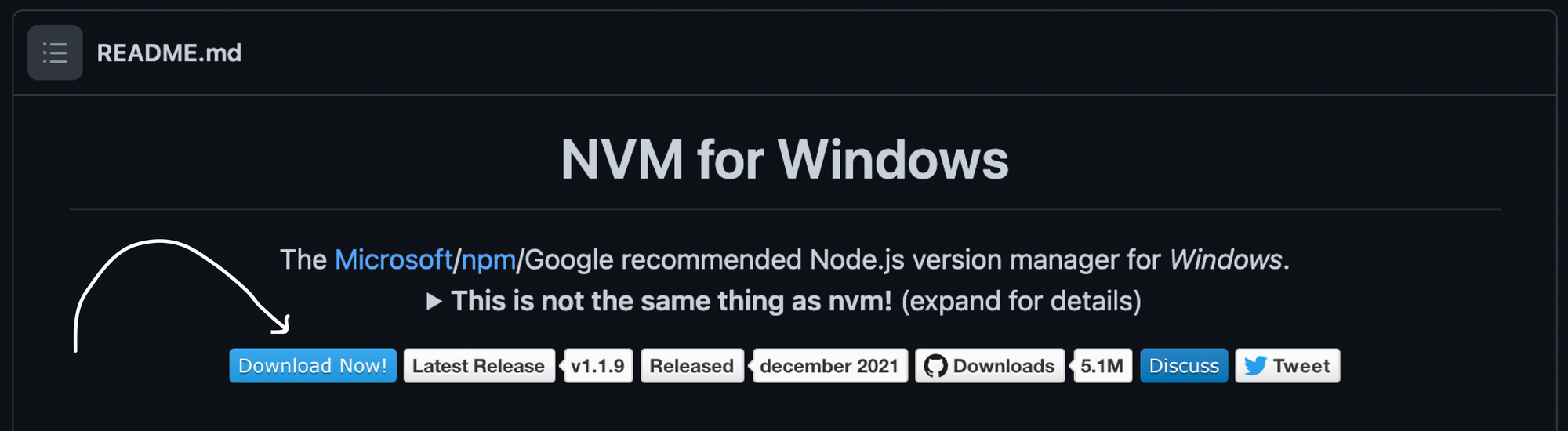
This will open a page showing different NVM releases.
-
Install the .exe file of the latest release
In the latest release you'll find different assets. Click on the nvm-setup.exe asset which is the installation file for the tool
-
Follow the Installation Wizard
Installing node and npm with nvm:
Verify your installation with nvm -v in the terminal. Once nvm is installed, you can install specific versions of node:
nvm install 20.0.0 # Installs a specific version
nvm install --lts # Installs the latest Long Term Support Version

nvm ls # Shows all the version of node installed

# Switch to a specific node version
nvm use <VERSION_NUMBER>
nvm use 20.11.1

# Sets devices default node version to the specific version
nvm alias default <VERSION_NUMBER>
nvm alias default 20.11.1
To verify your installation type node -v and npm -v in the terminal.
If the instructions above don't work, check out these resources:
No comments to display
No comments to display