
Week 4
Last week, we used Git to save our practice page and review a change. This week, we'll rebuild part of that page with React. By the end, you'll have one InterestCard component used twice with different text, plus a layout that fits a narrow or wide browser. We'll also try a button that changes a card title and follow what happens inside the page.
Why are we using React?
In Week 2, we found a paragraph with querySelector and changed its textContent. That worked because we knew exactly which element needed different text.
Now think about our merch site. Choosing a size can change the price and whether a button is available. Adding an item can change its quantity in the cart and the displayed subtotal. We need those pieces to agree about the current data.
React is a JavaScript library for building user interfaces. A user interface is the part someone sees and uses, such as a product card or a size selector. With React, we describe what those parts should show for the current data. When that data changes through React, React calculates the next result and updates the browser's elements.
We divide the interface into components. A component is a reusable piece of the interface defined in code. In this lesson, our component is a JavaScript function that returns a description of one interest card. We can use it twice and give each card different information. Later, a ProductCard can work the same way for merch.
We can build this with plain JavaScript too. React gives us a common structure for the repeated, changing parts that our teams will work on. It also adds concepts, dependencies, and build tools. It does not make a page faster just because we used it. For a short information page with one button, I would usually keep the plain HTML, CSS, and JavaScript version.
React lets us describe what should appear for the current data. After we've built the title-changing button, we'll put plain JavaScript and React next to each other and follow the same change in both versions. That will make the word declarative more useful than a definition on its own.
| Job | Earlier page | React page |
|---|---|---|
| Describe a card | Write HTML. | Return JSX from a component. JSX is HTML-like syntax inside JavaScript. |
| Style the card | Write CSS. | Keep writing CSS. Use className in JSX where HTML uses class. |
| Reuse the card | Copy markup or write a JavaScript function. | Use one component several times with different inputs, called props. |
| Change what is displayed | Find and change DOM elements. | Update state and let React calculate the result. State is information React remembers between renders. |
| Run the project | Open an HTML file. | Run Vite so it can process JSX and serve the files. |
What is an element, and what is the DOM?
Start with the heading from our interest card:
<h3>Video games</h3>
<h3> is the opening tag. Video games is the content. </h3> is the closing tag. Together, they describe an HTML heading element. A tag is one part of the markup for an element. An element such as img has no content or closing tag in HTML.
This picture labels the same parts of a paragraph:

The browser turns HTML into a set of objects that represent the page. This is the DOM, or Document Object Model. JavaScript can find these objects, read them, and change them.
A node is one item in the DOM. It is a general name for several kinds of object. Two kinds matter in this example:
- An element node represents an element such as
h3orp. - A text node holds the words inside an element, such as
Video games.
For <h3>Video games</h3>, the browser makes an h3 element node and a separate text node holding Video games. The opening and closing tags describe the same element. They do not become two separate nodes.
Here is the whole card:
<article class="interest-card">
  <h3>Video games</h3>
  <p>I like learning how games are designed.</p>
</article>
The article contains h3 and p directly. We call article their parent, and h3 and p its children. The h3 is also the parent of the text node holding Video games. A child can have children of its own.
When we draw these connections, they branch. That is why we call this structure a tree. Each box below is one node. Each line connects a parent to a child:
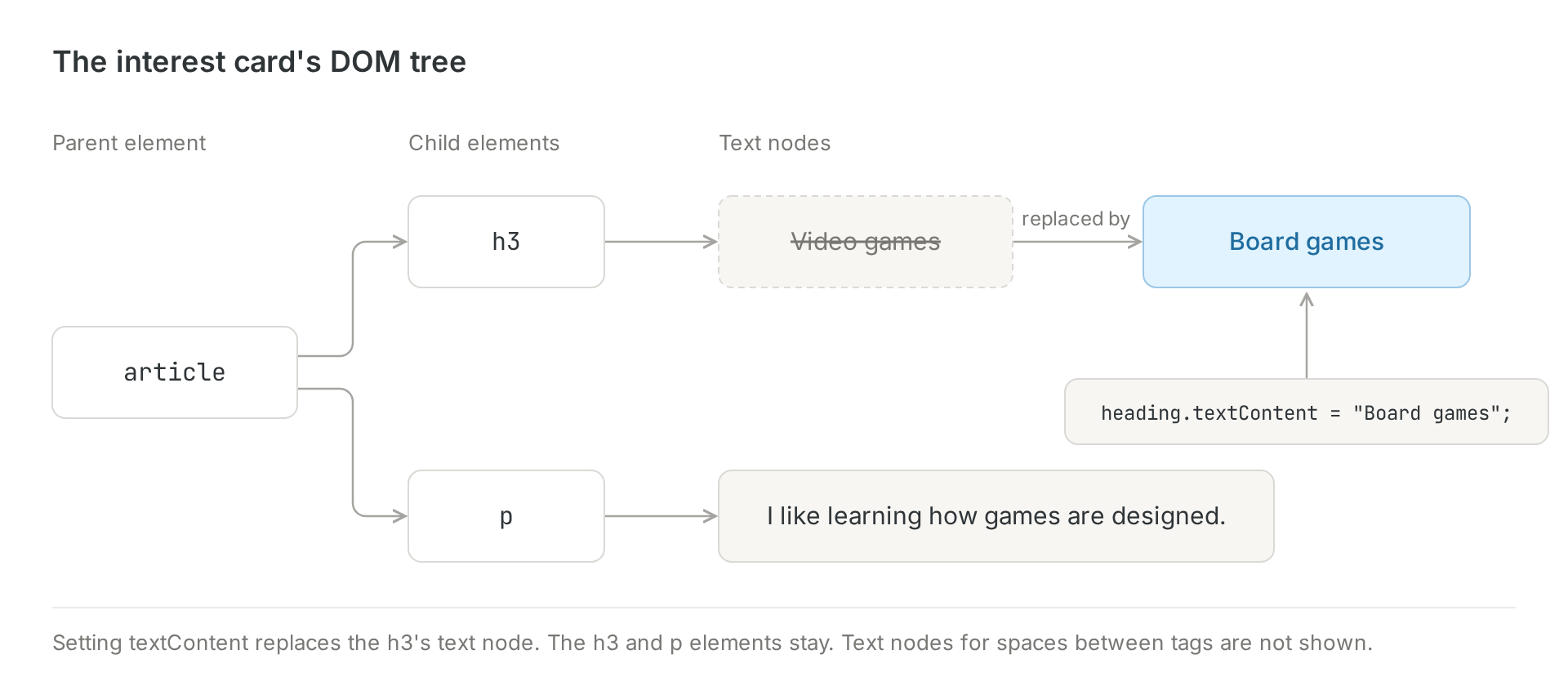
Three of the shown nodes are elements: article, h3, and p. The other two are text nodes. Every DOM element is a node because an element is one kind of node. A text node is also a node, but it is not an element.
The browser also makes text nodes for spaces and line breaks between tags. We leave those out of the picture so the card's structure is easier to see. You can read more in MDN's Node reference, but the two kinds above are enough for this exercise.
Week 2's querySelector returned a DOM element. For example, put the card markup above in a plain HTML page. After the card, add a script element containing this JavaScript, as we did in Week 2:
const heading = document.querySelector(".interest-card h3");
heading.textContent = "Board games";
The selector finds the first h3 inside an element with the class interest-card. heading refers to that live element. Assigning its textContent changes the text inside it. Setting textContent replaces the h3's text node with a new one; the h3 element itself stays. The browser shows "Board games" and keeps the paragraph. The saved HTML file on disk still says "Video games". Changing the live page does not rewrite that file.
Starting the React page
Open the whole practice-page repository in desktop VS Code. The React starter belongs in practice-page/react-page. Open a terminal in react-page and run npm install once before continuing.
Open the integrated terminal. The prompt usually shows the folder where commands will run; this is the current folder. Start at the top of practice-page. If you are inside react-page, run cd .. once: cd changes the current folder, and .. means its parent folder. Then start a branch for this lesson:
git switch main
git pull
git status
git switch -c react-profile
Before the last command, git status should show no unfinished changes from earlier lessons. The new react-page folder may be listed if you have not saved it with Git yet. If it lists an unfinished change from another lesson, stop and ask for help.
Now move into the React folder and start the page. cd react-page enters that folder from practice-page:
cd react-page
npm run dev
The terminal will print a local address. It often starts with http://localhost:, followed by a port number. Open the exact address shown on your computer.
This command starts a development server. The server gives the browser the files React needs and watches them while we work. Keep this terminal running. When you save a React file, the browser should update.
The address is local to your computer. Running the development server does not publish the page online.
How this project reaches the browser
The starter supplies a few files that connect our component to the page. Open them once so you know what they do. We will mainly edit App.jsx, the new InterestCard.jsx, and CSS today.
| File | What it does in this starter |
|---|---|
index.html |
Contains a div with id="root" and loads src/main.jsx. This is inside react-page, separate from the original HTML lesson. |
src/main.jsx |
Imports App and styles.css, then asks React to display App inside that root element. Leave its startup code in place. |
src/App.jsx |
Defines the component describing our practice page. This is where we will first change the heading. |
src/styles.css |
Contains ordinary CSS for the page and cards. |
public/avatar.svg |
Contains the supplied image. Vite serves it at /avatar.svg. |
package.json |
Lists the project's packages and names commands such as dev and build. |
Follow the path from index.html to main.jsx to App.jsx. React uses the description returned by App to create the elements inside the root. The page still has HTML elements that you can inspect in the browser.
React and Vite have different jobs. React describes and updates the interface. Vite is the development and build tool in this starter; it processes JSX and serves the project locally. Node.js runs those tools on your computer, and npm installs packages and runs the named scripts. In this project, Node.js is not the shopper's browser or a custom store backend.
Saving App.jsx updates the local browser because of the development tools. That automatic update while editing is different from an event changing state while someone uses the finished page.
React and JSX
We will write our components as JavaScript functions that return a description of part of the page. return gives a result back to the code that called the function. React calls our component and uses that result to decide what to show. Our Week 2 function changed an existing paragraph; this function gives React a description of the page.
Open react-page/src/App.jsx. App is the main component in this project. The .jsx ending tells us that the file contains JavaScript and JSX.
JSX lets us write HTML-like markup inside JavaScript. Most of the elements in App.jsx should look familiar from Week 1. There are a few differences:
- JSX uses
classNameto assign a CSS class. A class is a label we can reuse on several elements to give them the same styles. Plain HTML calls this attributeclass. - Every tag must close. The image ends with
/>. - The JSX in this starter returns one outer element:
main. - Braces place a JavaScript value inside the markup.
The elements still have their HTML jobs. Our h1, h2, and h3 describe the heading order, article groups one card, and alt describes the image. Keep the section's aria-labelledby connected to the heading's id. React does not make that work for us if we remove it. Attributes beginning with aria- or data- keep their dashes in JSX.
For an action, use a real button. The browser already knows how to focus it and activate it from the keyboard. Moving HTML into a component should preserve those behaviors.
Find this line:
<h1>Hello, I'm Alex</h1>
Change Alex to your name or a nickname. Save the file and look at the browser. The heading should update without a manual refresh.
The development server saw the saved change and sent the changed code to the browser, which swapped it in without reloading the page. The saved code is still in App.jsx, just as our earlier page content was saved in index.html.
Making a component
The interest card is currently written inside App. We'll move it into its own component. The page should look the same after the move.
Create a file named InterestCard.jsx inside react-page/src. Add this code:
export default function InterestCard() {
  return (
    <article className="interest-card">
      <h3>Video games</h3>
      <p>I like learning how games are designed.</p>
    </article>
  );
}
InterestCard returns the JSX between the parentheses after return. The parentheses let that result span several lines. Keep the opening parenthesis on the same line as return, as shown. Component names start with a capital letter. Lowercase names such as article, h3, and p refer to HTML elements.
The words export default make this component available to another file.
Return to App.jsx. Remove the matching article from inside interest-list. At the top of the file, before the App function, add:
import InterestCard from "./InterestCard.jsx";
import brings the component from InterestCard.jsx into this file. The ./ means the two files are in the same folder.
Inside interest-list, where the article used to be, add:
<InterestCard />
Save both files. The card should return and look the same as it did before. <InterestCard /> tells React to use the component we made.
We moved the card without changing its result. Giving the card its own component lets us reuse it.
Passing props
If we add <InterestCard /> twice now, both cards will show the same words. Props let one component give information to another component.
App uses InterestCard, so App is the parent component and InterestCard is its child component. The parent passes props to the child.
Replace the first line of InterestCard.jsx so the function receives a value named props:
export default function InterestCard(props) {
props is the function's parameter: the name we use for the information it receives. React puts the values passed to a component into the props object. An object groups values under names. We will use the names title and description.
Replace the fixed heading and paragraph inside the component:
export default function InterestCard(props) {
  return (
    <article className="interest-card">
      <h3>{props.title}</h3>
      <p>{props.description}</p>
    </article>
  );
}
The braces tell JSX to display a JavaScript value. props.title gets the value named title, and props.description gets the value named description.
The card will be blank until App passes those values. In App.jsx, replace <InterestCard /> with:
<InterestCard
  title="Video games"
  description="I like learning how games are designed."
/>
Save both files. The original card should appear again.
The prop name must match in both places. title="Video games" passes the value. props.title reads it, and {props.title} displays it.
Treat props as read-only inputs. To change this card's title, change the value that App passes. Do not assign a new value to props.title inside InterestCard.
Quoted text or a JavaScript value?
What would title="title" display? It passes the literal word "title". Quotes do not ask JavaScript to look up a variable.
For a quick comparison, add this inside App, above its return:
const title = "Board games";
Change the first card to use title={title}. The braces read the variable, so the card now receives "Board games". The same rule works with description, an image's src, and other props. Braces can contain an expression that produces a value, such as a variable or a calculation.
Try title="title", then title={title}, and compare the headings. Restore the original title prop and remove the temporary variable before continuing. The reference keeps the original fixed strings.
Reusing the component
Add a second card below the first one:
<InterestCard
  title="Photography"
  description="I like taking pictures around Hoboken."
/>
Save the file. The page should show two cards with different words. Both use the code in InterestCard.jsx.
Change the two cards to describe your interests. Add a third InterestCard if you have another idea. Change the prop values in App.jsx; do not copy the component function.
Here is the complete App.jsx for comparison:
import InterestCard from "./InterestCard.jsx";

export default function App() {
  return (
    <main>
      <h1>Hello, I'm Alex</h1>
      <p>I'm a student at Stevens.</p>
      <img
        className="profile-image"
        src="/avatar.svg"
        alt="A blue smiling face"
        width="120"
        height="120"
      />

      <section aria-labelledby="interests-heading">
        <h2 id="interests-heading">Things I like</h2>
        <div className="interest-list">
          <InterestCard
            title="Video games"
            description="I like learning how games are designed."
          />
          <InterestCard
            title="Photography"
            description="I like taking pictures around Hoboken."
          />
        </div>
      </section>
    </main>
  );
}
The merch project will use the same idea. A ProductCard component can contain the shared structure, while each use passes a different product's information.
What happens when we click a button?
Let's say our card says "Video games". We want a button that changes it to "Board games". The button needs to do more than change a JavaScript variable. React also needs to know that it should calculate the page again. Code that should run because of a click goes in the click handler, not in the component body.
We now have two cards. Keep that version of App.jsx so you can restore it after this experiment. For example, copy it into an unsaved editor tab. Replace App.jsx with this complete file:
import { useState } from "react";
import InterestCard from "./InterestCard.jsx";

export default function App() {
  const [title, setTitle] = useState("Video games");

  function handleClick() {
    setTitle("Board games");
  }

  return (
    <main>
      <h1>My interests</h1>
      <button type="button" onClick={handleClick}>
        Show board games
      </button>
      <section aria-labelledby="demo-heading">
        <h2 id="demo-heading">Things I like</h2>
        <InterestCard
          title={title}
          description="I like learning how games are designed."
        />
      </section>
    </main>
  );
}
Keep the InterestCard.jsx we already made. It reads props.title and props.description and returns an article, h3, and p.
useState lets a component keep information between renders. We import it from React because it is a React function. On the first render, useState("Video games") gives us two values. title is the current value, and setTitle is the function we call to request a different value. The square brackets give those two returned values separate names. This syntax is called array destructuring.
React remembers this state while this App stays in the same place in the component tree. On later renders, useState gives us the stored value. Calling App again does not start the title over. Keep useState at the top of the component, outside conditions, loops, and event handlers, so React can match each call with the same stored state. Reloading this page does start it over, because this example does not save state outside the running page.
The click is an event. An event is a notification that something happened, such as a click or a key press. handleClick is the event handler, the function we want React to call for this button's click. onClick={handleClick} passes the function. Adding parentheses, as in onClick={handleClick()}, would call it while calculating the page instead of waiting for the click.
Save App.jsx. The card should say "Video games". Click Show board games. The heading should become "Board games", and the paragraph should keep its original words. You do not need to refresh the browser.
How the button works
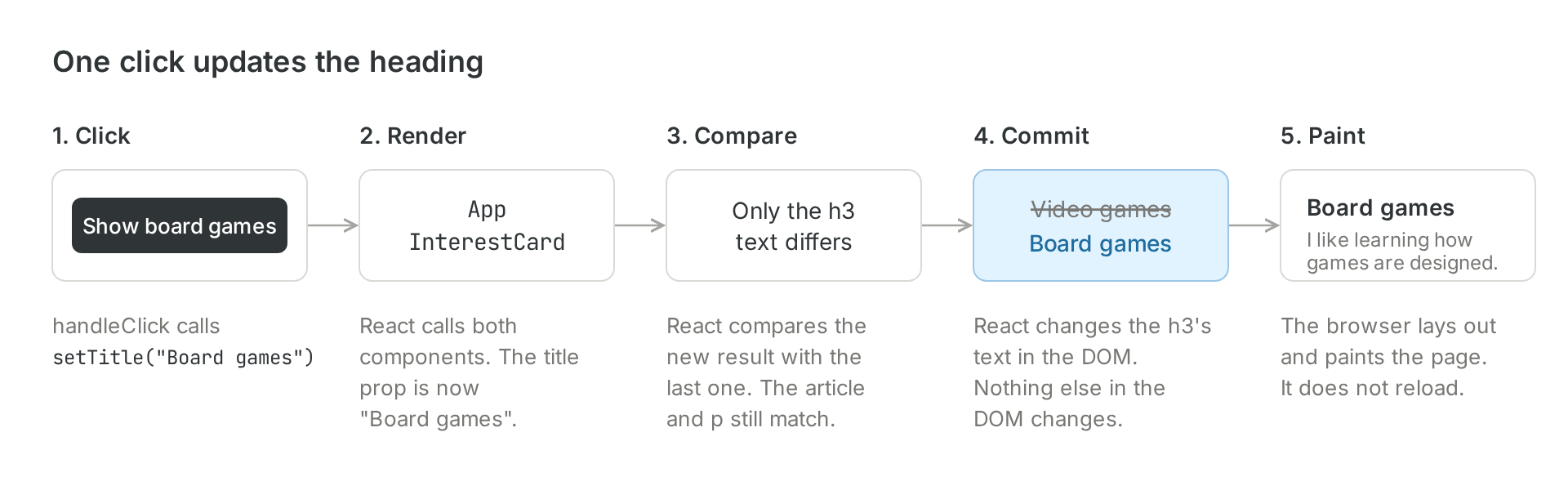
React then compares the new result with the old one. Here only the heading's text changed, so that's the only thing it updates in the real page. This step is called the commit, and it has nothing to do with Git commits. The browser then redraws the card. If the new heading is longer and wraps onto another line, the card can get taller too.
Why not just use a normal variable?
You might think this would work:
function App() {
  let title = "Video games";
  function handleClick() {
    title = "Board games"; // changes the variable...
  }
  return <InterestCard title={title} />;
}
It doesn't work, for two reasons. Changing title doesn't tell React to render again, so nothing on screen changes. And even if App did run again, the first line would reset title to "Video games".
useState fixes both problems. It remembers the value between renders, and its setter tells React to render again:
const [title, setTitle] = useState("Video games");
function handleClick() {
  setTitle("Board games"); // asks React for a new render
}
One catch is that setTitle doesn't change title inside the click handler that's already running. It asks for the next render, and that render gets the new value.
App owns the state. InterestCard just receives the current title as a prop and reads props.title. It never changes its props itself.
Declarative React beside plain JavaScript
We'veYou nowdon't used the DOM, JSX, state, and an event handler. We can use those ideasneed to explainrun whatthese. peopleJust meancompare when they call React declarative.
Keep just a heading, paragraph, and button for this comparison.them. Both versions start with "Video games" and change the heading to "Board games" when the button is clicked.
HerePlain isJavaScript, thelike plainWeek JavaScript version. The script goes after the elements so they exist before querySelector looks for them:2:
<h1 id="interest-title">Video games</h1>
<p>I like learning how games are designed.</p>
<button id="title-button" type="button">Show board games</button>

<script>
  const heading = document.querySelector("#interest-title");
  const button = document.querySelector("#title-button");

  functionbutton.addEventListener("click", handleClick(() => {
    const nextTitleheading.textContent = "Board games";
  heading.textContent = nextTitle;
  }

  button.addEventListener("click", handleClick));
</script>
ReadThis theis handlerimperative. asWe two steps. First, choose the new text. Then, put that text intofind the heading weourselves found. textContent is the instruction that changes the live DOM. Creating nextTitle alone would leave the heading unchanged.
This is an imperative update. Weand tell the browser theexactly steps to take, including which elementwhat to change. If the sametitle valueshowed also appearedup in anotherthree paragraph,places, wewe'd would needhave to keepupdate thatall paragraphthree.
The same thing in agreement too.
Here is the same small example as a complete React App.jsx. Use the existing React starter to run it, then restore your card example afterward:React:
import { useState } from "react";

export default function App() {
  const [title, setTitle] = useState("Video games");

  function handleClick() {
    setTitle("Board games");
  }

return (
  <main>
    <h1>{title}</h1>
    <p>I like learning how games are designed.</p>
      <button type="button" onClick={handleClick}() => setTitle("Board games")}>
      Show board games
    </button>
  </main>
);
}
This is declarative. <h1>{title}</h1> describessays a relationship. The"the heading shouldalways containshows the current title.title," Weand we write that once. WeWhen don'twe writecall asetTitle, secondReact instructionrenders thatagain findsand updates the heading and replaces its text after every change.
That is the declarative part. Our JSX describes the result for theus. current data. The event handler still chooses what should happen. It asks React to remember "Board games" by calling setTitle.
For the first click, follow the values:
titlenextTitleheading.textContent = nextTitlesetTitle("Board games")titleApph1The React version has no querySelector orand no textContent assignment. React does that DOM update work from the result we described. In this example, the paragraph and button keep their content, the heading element stays in place, and the document does not reload..
React isn't watching every JavaScript variable. Assigning a local variable would not request this update. The state setter connects our new value to another render. In our earlier InterestCard example, App owns that state and passes the title through a prop; the card describes its heading from that prop.
Plain JavaScript can also use a function that describes a whole result. These examples compare Week 2's direct DOM edits with React's state-and-JSX pattern. For this one heading, the plain version is shortperfectly fine. React starts to pay off when lots of parts of the page depend on the same data and perfectly reasonable. React becomes useful when several componentsall need to stay in agreement as their data changes.
Try changing the requested text to "Card games". In the plain version, identify the line that edits the DOM. In the React version, identify the state request and the JSX that describes the result. The expected answer is heading.textContent = nextTitle, then setTitle(...) and <h1>{title}</h1>. If that distinction is still unclear, ask us to trace one click with you before adding more code.sync.
React's state guide and render-and-commit guide explaincovers the same distinctionidea with othermore examples.
What is React comparing?
JSX produces descriptions called React elements. For example, <h3>{props.title}</h3> describes a heading and its current text. A React element is a JavaScript value. It is not the live DOM object returned by querySelector.
InterestCard is the component function. <InterestCard title={title} /> describes one use of that function, including its inputs. When React renders the component, it calls the function to get the elements inside the card.
This picture shows the state demo after the click, when App passes title as "Board games":
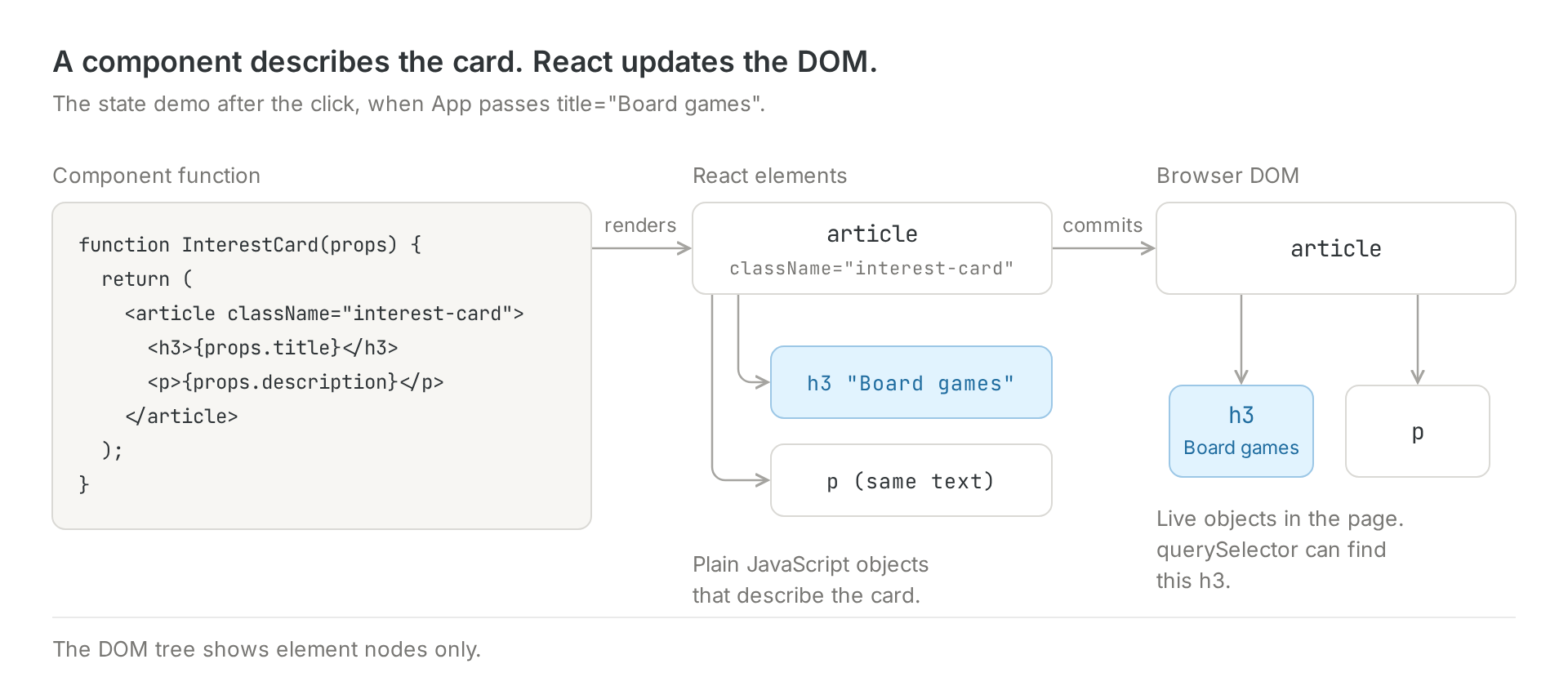
Here are the three meanings of element in this lesson:
| Place | What we are looking at |
|---|---|
| HTML source | <h3>Video games</h3> is markup describing a heading element. |
| Browser DOM | A live heading object, which querySelector can return. Its text can change. |
| React code | JSX produces a React element describing what React should display. |
This picture separates the component tree from the browser DOM tree:
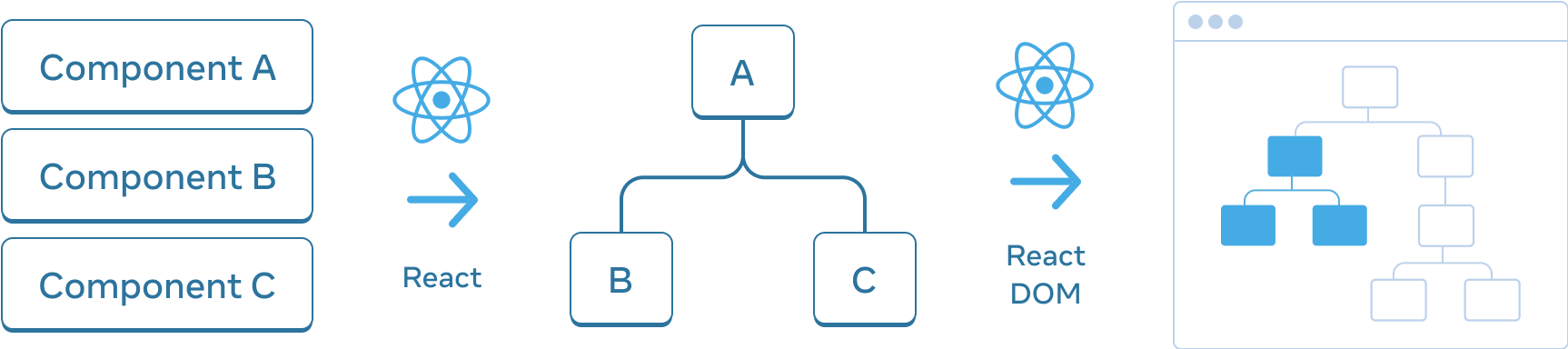
Image from React's Understanding your UI as a tree, React documentation contributors, CC BY 4.0. Displayed without alteration.
For our two-card page, imagine A is App and B and C are its two uses of InterestCard. Both cards use the same function. Each card returns several elements, so the component tree and the DOM tree have different jobs and different numbers of parts.
PeopleYou'll oftenhear people call this the virtual DOM. It's just React's in-memory description of the interfacewhat the virtualpage DOM.should look like, kept in memory. It is not another visible page orisn't a copysecond of every object in the browser's document.page. The real DOM is what the browser'sbrowser currentis document.actually showing, and React uses its descriptionsdescription to decidefigure out what that document needs next.to change there.
React'sComparing comparisonthe old description with the new one is called reconciliation.reconciliation. React usesmatches things up by what type of element typethey are and positionwhere tothey match parts across renders.are. In our example,card, the article, h3, and p remainare all still in the same positions,spots, so React cankeeps keep those elementsthem and changejust swaps the headingheading's text. If we replaced an h3 withturned into an input, React would needthrow the old one away and make a new element.
The same goes for components. If a component disappears, or gets swapped for a different DOM element.
Component state also depends on identity. Removing a component, or replacing its typeone in thatthe position,same canspot, discardReact throws away its state. Next week,week listwe'll use keys willto help React matchkeep track of items whenin a list changeswhen order.they move around. We do notdon't need keysthem foryet, thebecause our two fixedcards cardnever uses we wrote today.move.
The first render and later renders
OnThe first time the firstpage visit,loads, main.jsx calls root.render with render(<App />). React callsruns App and every component inside it, builds the components it uses, creates their DOMreal elements, and addsputs them inside the root. The browser can then drawon the page.
Later,After ourthat, every time state setter requests an update.changes, React callsruns App again, along with the components inside it, even ones whose props didn't change. It compares the new stateresult with the old one and normallyonly renderstouches itsthe childrenparts too.of Athe childpage canthat renderactually evenchanged. Sometimes nothing changed, and then React leaves the page alone.
One thing that might catch you, if itsyou props did not change. React compares the result and commits any required DOM changes. A render can produce the same result and require no DOM change.
Keep the component's calculation pure. Here that means reading the current props and state and returning JSX. Do not changeput a prop,console.log directly edit the DOM, or sendinside a networkcomponent, requestyou whilemight calculatingsee thatit JSX.print Reacttwice. can callThat's the component more than once. The starter's StrictMode deliberatelyrunning repeatscomponents sometwice developmenton workpurpose while you develop, to help catch mistakes,bugs. soIt a console message inside the component may appear twice. That does notdoesn't mean the personyou clicked twice.
CompareNot theseevery differentchange kindson ofthe update:page goes through React:
| What happens | |
|---|---|
Save App.jsx while Vite |
|
| Click |
The handler |
| Resize the window | The browser |
| Reload the |
RestoreBefore moving on, put back the two-card App.jsx from Reusing the component. beforeThat's continuing.the Theversion finalwe practice pagekeep for todaytoday. keepsNext thoseweek twowe'll fixeduse cards.what Thisyou experimentjust showssaw howto Week 5's changing data will reachmake the componentscards you made.change.
How the cards get their styles
The starter still uses ordinary CSS. Open src/styles.css and find .interest-card. The dot means this rule selects a class, so it styles each element whose JSX says className="interest-card". Unlike an ID, the same class can appear on several elements.
Now find the list rule:
.interest-list {
  display: grid;
  gap: 12px;
}
The div with className="interest-list" groups the cards. display: grid lets CSS arrange its children in rows and columns. This rule uses one column, so every new card gets a row. gap adds space between them.
Try changing gap to 24px. The space between cards should grow while the padding inside each card stays the same. Restore 12px after checking it.
Now let the cards sit side by side when the browser has room. Add this after the closing brace of the existing .interest-list rule:
@media (min-width: 600px) {
  .interest-list {
    grid-template-columns: 1fr 1fr;
  }
}
A media query applies CSS only when its condition is true. Here, min-width: 600px checks whether the browser's page area is at least 600 CSS pixels wide. It checks the browser width, not the width of the card. The rules inside its braces apply at that width and above.
grid-template-columns sets the columns. Each 1fr asks for one equal share of the available space, so 1fr 1fr makes two equal columns. Below 600 pixels, this rule stops applying and the original one-column grid remains. This is a responsive layout: the arrangement changes to fit the available space.
Save, then resize the browser. Check a narrow view around 390 pixels and a wide view around 900 pixels. Use the browser's device toolbar in Inspect if the window will not get narrow enough. You should see one column in the narrow view, two in the wide view, and space between the cards in both. The text should remain readable without horizontal scrolling.
A merch catalog can use the same technique for its product cards.
A shorter way to read props
This is optional practice after your page works. You may see a component receive props with this syntax:
export default function InterestCard({ title, description }) {
Then remove props. from the two values inside the JSX:
<h3>{title}</h3>
<p>{description}</p>
Save and check the page. It should look the same. We changed how the component receives its props, not what it displays.
This syntax is called object destructuring. React still passes one props object. The braces select its title and description properties and give us variables with those names. function InterestCard(props) followed by props.title and function InterestCard({ title }) followed by title read the same input. There is no new React behavior here.
An unknown prop is still undefined. Destructuring does not repair a misspelled prop name. You can keep the original props.title version if it is easier to follow.
Debugging a prop
Use this short demonstration if time allows.
In the second card in App.jsx, change description to the misspelled name descripton:
<InterestCard
  title="Photography"
  descripton="I like taking pictures around Hoboken."
/>
Save the file. The second heading remains, but its paragraph becomes blank.
InterestCard asks for a prop named description. The parent passed a different name, so description has no value to display. This mistake might not show a red error screen.
When part of a component is blank, compare the prop names where the component is used and where it receives them. Restore the missing i, save, and check that the paragraph returns.
If the browser shows an error screen, read its filename and line number. JSX errors often come from an unclosed tag, brace, quote, or parenthesis near that line.
Saving the React page with Git
Open a second integrated terminal so the development server can keep running. The new terminal should start at the top of practice-page. If its prompt ends with react-page, run cd .. once before continuing.
First, run the React project's build check:
cd react-page
npm run build
cd ..
The build should finish without an error. A folder named dist will appear, but the project's .gitignore keeps it out of Git.
Run git status, then open Source Control in VS Code. Read the changed React files and use the plus buttons to stage them. If react-page/package-lock.json is listed, stage it too. It records the exact package versions so others install the same ones. Check the selection in the terminal:
git diff --staged --stat
git diff --staged -- react-page/src/App.jsx react-page/src/InterestCard.jsx
Read the staged files. node_modules and dist should not appear. node_modules contains packages downloaded by npm install; another person can restore them from package-lock.json.
If either ignored folder appears, stop and ask for help before committing.
In Source Control, enter Build reusable interest cards with React as the commit message and select Commit. Select Publish Branch to send react-profile to GitHub. If the branch is already published, choose Push from the ... menu instead.
Use the GitHub Pull Requests view in VS Code to create a pull request into main. In the description, say what you built and what you checked. For example:
I rebuilt part of my practice page with an InterestCard component and passed different content through props. I opened the local page and rannpm run build.
Ask your Week 3 partner to review the component.
Common problems
| What you see | What to check |
|---|---|
node or npm is not found |
Install the current Node.js LTS release, then completely close and reopen VS Code. |
Windows says scripts are disabled when you run npm |
In VS Code, choose Terminal > Select Default Profile > Command Prompt, open a new terminal, and try again. |
npm cannot find package.json |
Run cd react-page before npm run dev or npm run build. |
| The browser is blank or shows the wrong page | Use the exact local address printed by the current npm run dev command. Do not open index.html directly. |
| A card heading appears without its description | Compare the prop names in App.jsx and InterestCard.jsx. |
| The browser shows a JSX error | Start at the named file and line. Match each opening tag, brace, quote, and parenthesis with its closing one. |
| The local address does not use port 5173 | Use the address printed by the development server. It selects another port when 5173 is busy. |
| Git shows thousands of files | Stop before committing. Check that react-page/.gitignore exists and that node_modules and dist are listed in it. |
| The branch name already exists | Run git switch react-profile instead of creating it again. |
| A push asks for a GitHub username or password | Run gh auth status and gh auth setup-git, then try the push again. |
What's next
Next week, we will put the card information into an array and use it to make a list. We will use state again to make a search field respond as someone types. After that, we will practise loading API data, using a cart, and following checkout before starting the shared merch project in Week 9.
The complete App.jsx, InterestCard.jsx, and setup files are on this page. Use them to compare a file that is not working.
Resources
Everything needed for today's code and explanations is above. These are extra examples or references to return to after the exercise.
- MDN: Document Object Model explains the browser objects behind the page.
- React: Your first component gives more component examples.
- React: Writing markup with JSX covers JSX syntax.
- React: Passing props to a component explains inputs and destructuring.
- React: Responding to events gives more handler examples.
- React: State, a component's memory explains remembered values and setters.
- React: Render and commit gives another page-update trace.
- React: Preserving and resetting state explains component identity.
- MDN: CSS Grid gives more layout examples.
- MDN: Using media queries explains responsive conditions.
- Vite: Getting started documents the development and build tools.
Next week, we will use arrays, lists, and a search field. If you cannot explain a step in your own words, ask a Tech Team lead or bring that step to the next meeting.