
Week 5
Last week, we made one React component and used it twice by hand. We still wrote each <InterestCard /> separately in App.jsx. This week, we'll put our interests in a list and have React make those same cards from that list.
We'll also add a search field. Last week, state remembered a title for a click. This week, state remembers search text for typing. A merch page will need the same ideas to show a list of products, remember a selected size, and respond to changes in a cart.
By the end of the meeting, your page should display cards from an array and remember the text you type into an input. We'll finish by using that text to filter the cards. If you need more time, finish the filtering before next week; keep the working list and input first.
Getting started
The complete practice files are included at the end of this lesson.
Open the whole practice-page repository in VS Code. Save and commit any finished Week 4 work before starting this lesson. From a terminal at the repository's top level, run:
git status
git switch -c interests-state
cd react-page
npm run dev
The branch starts from your current saved Week 4 work. If git status shows unfinished changes you do not recognize, ask for help before switching branches. Open the exact local address printed by the development server.
We'll keep using the same React project. You can compare your work with the complete practice files below. The reference files go in react-page/src. Copy the supplied App.css into src before continuing. It adds spacing and visible keyboard focus for the input and works alongside the existing styles.css. Keep last week's InterestCard.jsx — we will drive it from the array.
Objects and arrays
An object groups information about one thing under property names. Last week, the props object held a card's title and description. We can make our own object too:
const interest = {
  id: "games",
  title: "Video games",
  description: "I like learning how games are designed."
};
The outer braces hold the object. Each property has a name, a colon, and a value. Commas separate the properties. interest.title reads the value under title, which is "Video games".
The id is an identifier: a value that distinguishes this item from the others. We choose it once and keep it the same even if we change the title.
An array is an ordered list. Create src/interests.js and add:
export const interests = [
  {
    id: "games",
    title: "Video games",
    description: "I like learning how games are designed."
  },
  {
    id: "photos",
    title: "Photography",
    description: "I like taking pictures around Hoboken."
  }
];
The square brackets, [ and ], hold the array. Each item here is an object, and a comma separates the two objects. interests[0] gets the first item; array positions start at zero. interests[0].title gets that item's title.
export lets another file import this value. This is a named export, so we will use the same name inside braces when importing it.
Save interests.js. You should have two objects inside one array. The two-item array above keeps the walkthrough short. The supplied reference adds a Cooking interest. Its objects have the same fields. Searching for games still keeps only Video games.
A function that receives and returns a value
A function can receive information when we call it. In this function, interest is the parameter: the name used for the input inside the function.
Last week we wrote two <InterestCard />s by hand. This week one function returns that same component for whichever object we give it:
function renderInterest(interest) {
  return (
    <InterestCard
      key={interest.id}
      title={interest.title}
      description={interest.description}
    />
  );
}
If we call renderInterest(interests[0]), we give it the first object. That supplied value is called an argument. Inside that call, interest.title becomes the card's title prop.
return sends a result back to the code that called the function. Here, the result is JSX describing one InterestCard. The parentheses let us spread that JSX over several lines. The function does not change the original object.
InterestCard still uses an <h3> for the title, just like last week. We'll use key in the next step. It gives React the item's stable identity when it appears in a list.
Making the cards from the list
Replace src/App.jsx with this small version while we learn the list code. Your earlier profile is still saved in Git. Keep InterestCard.jsx in the folder — we import it here.
import InterestCard from "./InterestCard.jsx";
import { interests } from "./interests.js";
import "./App.css";

function renderInterest(interest) {
  return (
    <InterestCard
      key={interest.id}
      title={interest.title}
      description={interest.description}
    />
  );
}

export default function App() {
  return (
    <main>
      <h1>Things I like</h1>
      <div className="interest-list">
        {interests.map(renderInterest)}
      </div>
    </main>
  );
}
.map() is an array method, which means it is a function available on an array. It calls renderInterest once for each item and collects the returned cards into a new array. The JSX braces display that result. We pass renderInterest without parentheses so .map() can call it with each item.
key={interest.id} helps React match a rendered card to its data when the list changes. Each item in this list needs a different key. Use the saved ID, not a newly generated random value or the item's current position. Put key on the InterestCard in the list, not inside the component file.
Save both files. You should see two cards that look like last week's.
Now add a third object to interests.js with a different ID, title, and description. Leave App.jsx alone. Save and check that a third card appears. Tell the person next to you how one function produced three different cards.
| Job | Last week | This week |
|---|---|---|
| Show two cards | Write two <InterestCard />s by hand. |
.map over the interests array. |
| Change a title | Edit the prop in JSX. | Change it in the array (or later, filter which objects show). |
| Remember a value | Click sets title state. | Typing sets query state. |
Remembering what someone types
Last week, useState remembered a title so a click could change a card. This week it remembers search text so typing can change what we show. Same two jobs: React remembers the value between renders, and the setter requests an update.
A render is React calling a component to work out what the page should show. When we update state, React renders the component again using the new value.
Why not write let query = "" inside App? Each call to App would run that declaration again and start with an empty string. Assigning a different string in a handler also would not tell React to call App again. State still provides both pieces.
Add this import at the top of App.jsx:
import { useState } from "react";
Call useState at the top of App, before its return — same top-level rule as last week:
const [query, setQuery] = useState("");
useState("") starts with an empty string. It returns an array containing two things: the current value and a function that updates it. The square-bracket syntax gives those two things names in order. Here, query is the search text for this render. setQuery asks React to remember a value for the next render.
The empty string is the initial value. React does not reset the search to it every time App runs. On later renders of this same component, useState gives us the state React has remembered.
Keep this call at the top level of the component. Do not put it inside an event handler or an if statement.
Inside App, after that state line and before return, add:
function handleSearch(event) {
  setQuery(event.target.value);
}
React passes information about the input event to handleSearch. event.target is the input that changed, and its value is the text currently in it. We give that text to setQuery.
Below the heading in the JSX, add:
<label htmlFor="interest-search">Search interests</label>
<input
  id="interest-search"
  type="search"
  value={query}
  onChange={handleSearch}
/>
<p>You typed: {query}</p>
The label stays visible and tells someone what the field is for. JSX uses htmlFor to connect it to the input's matching id. type="search" describes the kind of text field.
value={query} makes React state control the field's displayed value. onChange={handleSearch} updates that state when someone types. Together these make a controlled input.
onChange={handleSearch} passes the function for React to call when the input changes. Defining that function inside App does not run its body during rendering. Writing onChange={handleSearch()} would call it immediately while calculating the JSX, before there is an input event to handle.
Save and type. The sentence below the field should repeat the text immediately. Clearing the field should clear that text too. Use setQuery(...) to update the state; assigning to query directly does not ask React to update the page.
Follow one page update
Start with the empty search and type g. Follow the value through the code we just wrote:
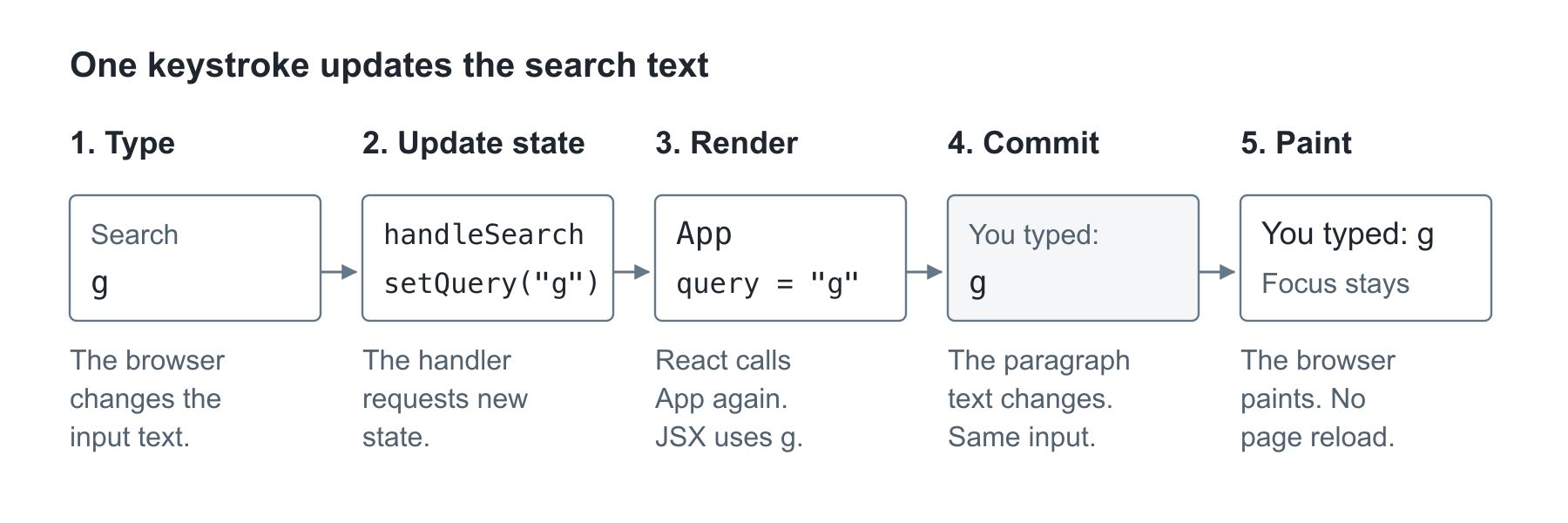
- The browser changes the input's text. React calls
handleSearchfor that change, andevent.target.valuecontains"g". - The handler calls
setQuery("g"). This requests new state; it does not edit the paragraph itself. - React calls
Appagain.useStatenow supplies"g"asquery. The JSX describes the input with that value and a paragraph saying "You typed: g". - React commits the needed DOM changes. The paragraph's text changes. The same input element stays on the page with keyboard focus, so you can keep typing.
- The browser paints the result. The document has stayed open throughout. We have not navigated to a new page or reloaded the HTML file.
The cards have not changed yet because this version still reads the same list. A render can update one part of the page and leave another alone.
Which value does the handler read?
Let's say the search starts empty and you type g. The input now contains g, so the event gives us that new text. But what does query contain while the handler runs?
Temporarily replace handleSearch with this version and open the browser's Console:
function handleSearch(event) {
  const nextQuery = event.target.value;
  setQuery(nextQuery);
  console.log("This render's query:", query);
  console.log("The input's new text:", nextQuery);
}
Start with an empty field and type g once. The first log shows the empty string and the second shows g. setQuery requested another render; it did not rewrite query inside this handler. React calls App again with the new state, and that render's query is g. Each render gets its own values, which is why a const declaration can give query different text on the next render.
Remove the two console.log lines after checking them. Keep nextQuery and setQuery(nextQuery) as your handler. The supplied reference uses that version.
Showing matching interests
We can use the search text to choose which objects become cards. This is the next part of the same exercise, so keep the working input before making this change.
Add this inside App, below handleSearch and above return:
function matchesSearch(interest) {
  return interest.title.toLowerCase().includes(query.toLowerCase());
}

const filteredInterests = interests.filter(matchesSearch);
.toLowerCase() returns a lowercase version of a string. .includes(...) checks whether a string contains the supplied text and returns true or false. These are Boolean values: yes or no answers. Comparing lowercase versions lets games and GAMES find the same title.
.filter() calls matchesSearch for each interest. It returns a new array containing the items whose answer was true. It keeps the original array intact. An empty query matches every title.
In the JSX, replace interests.map(renderInterest) with:
{filteredInterests.map(renderInterest)}
Now filter chooses the objects, then map makes their cards. We calculate filteredInterests from the current query each time React renders App. It does not need separate state.
Save. Try games, GAMES, and a word that is in none of the titles. When query reaches "games", that render keeps the Video games object and leaves out titles that do not match. The JSX describes the remaining cards, and the commit removes the other cards from the DOM. The existing Video games card can stay because its type and key still match.
When nothing matches, an empty page is not much help. Below the list, add:
{filteredInterests.length === 0 && (
  <p>No interests match. Clear the search to see them all.</p>
)}
.length is the number of items in the array. === compares values; here it asks whether that count is exactly zero. && means “and.” In this JSX expression, the paragraph appears only when the comparison is true. This is conditional rendering: choosing what to display based on a condition.
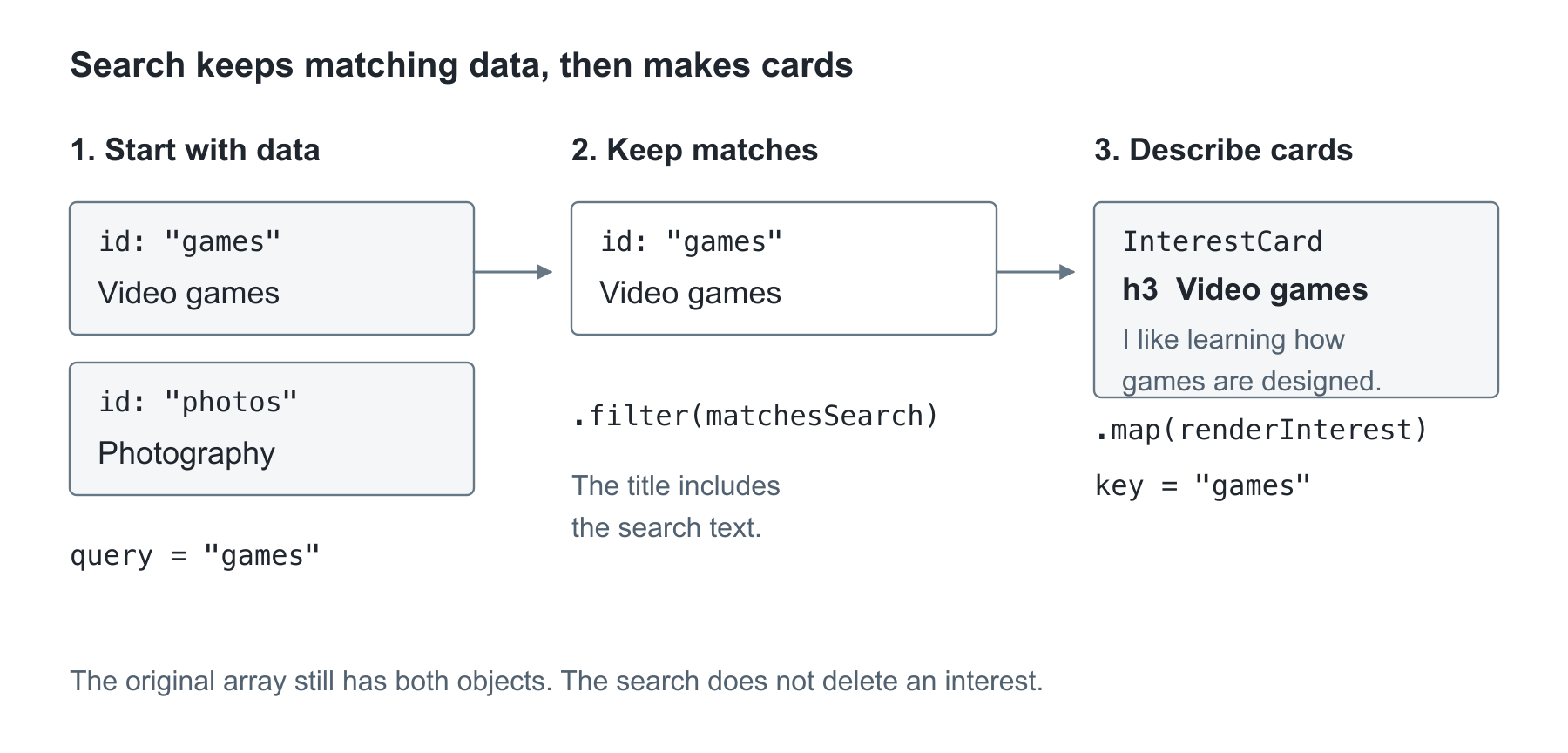
With query set to "games", the filter keeps the Video games object. The map then describes one card. Clearing the input lets both objects pass the filter again; neither object was deleted.
Save and check: a matching search shrinks the list, a missing word shows the no-match message, and clearing the field restores every card.
When something goes wrong
| What you see | What to check |
|---|---|
| Only one card appears after adding an object | Confirm the new object is inside the array's square brackets and separated from the previous object by a comma. |
.map is not a function |
Check that interests is the array, not one object such as interests[0]. |
| The list is blank with no syntax error | Make sure renderInterest returns its JSX. A function with no return does not give .map() a card. |
| React warns about keys | Give each object its own ID and keep key={interest.id} on the InterestCard in the list. |
| The input will not change | Check that onChange names handleSearch and that the handler passes the input's new text to setQuery. |
| React reports too many renders | Pass handleSearch to the event prop. Do not call a state setter while rendering the JSX. |
| Search always finds nothing | Compare the property names, then clear the query and try a title that appears in your data. |
What's next
Next week, the interest data will come from an HTTP response instead of a local import. Keep today's working list and search so you can compare imported data with data the browser loads.
The complete practice files are on this page. Use them to compare a file that is not working.
Resources
Everything needed for today's code and explanations is above. These are extra examples or references to return to after the exercise.
- MDN: JavaScript object basics
- MDN: Arrays
- MDN: Functions
- MDN: Array.map
- MDN: Array.filter
- React: Rendering Lists
- React: State, a component's memory
- React: Controlling an input with state
- React: Responding to events
- React: Conditional Rendering
Complete practice files
Copy these files into the paths shown below. They are the same files used by the lesson. Keep the filenames and imports together. Keep last week's InterestCard.jsx (or copy the version below if you need it).
src/InterestCard.jsx
export default function InterestCard(props) {
  return (
    <article className="interest-card">
      <h3>{props.title}</h3>
      <p>{props.description}</p>
    </article>
  );
}
src/App.jsx
import { useState } from "react";
import InterestCard from "./InterestCard.jsx";
import { interests } from "./interests.js";
import "./App.css";

function renderInterest(interest) {
  return (
    <InterestCard
      key={interest.id}
      title={interest.title}
      description={interest.description}
    />
  );
}

export default function App() {
  const [query, setQuery] = useState("");

  function handleSearch(event) {
    const nextQuery = event.target.value;
    setQuery(nextQuery);
  }

  function handleClear() {
    setQuery("");
  }

  function matchesSearch(interest) {
    return interest.title.toLowerCase().includes(query.toLowerCase());
  }

  const filteredInterests = interests.filter(matchesSearch);

  return (
    <main>
      <h1>Things I like</h1>
      <p>This page reads each interest from an array.</p>

      <label htmlFor="interest-search">Search interests</label>
      <input
        id="interest-search"
        type="search"
        value={query}
        onChange={handleSearch}
        placeholder="Try photography"
      />
      <button type="button" onClick={handleClear}>
        Clear search
      </button>

      <p role="status">Interests shown: {filteredInterests.length}</p>
      <div className="interest-list">
        {filteredInterests.map(renderInterest)}
      </div>
      {filteredInterests.length === 0 && (
        <p>No interests match. Clear the search to see them all.</p>
      )}
    </main>
  );
}
src/interests.js
export const interests = [
  {
    id: "games",
    title: "Video games",
    description: "I like learning how games are designed.",
  },
  {
    id: "photos",
    title: "Photography",
    description: "I like taking pictures around Hoboken.",
  },
  {
    id: "cooking",
    title: "Cooking",
    description: "I like trying a new recipe each week.",
  },
];
src/App.css
.interest-card h3 {
  font-size: 1.15rem;
  margin: 0;
}

label {
  display: block;
  font-weight: 600;
  margin-bottom: 8px;
}

input {
  width: 100%;
  font: inherit;
  color: inherit;
  padding: 12px;
  border: 1px solid #64748b;
  border-radius: 8px;
}

input:focus-visible {
  outline: 3px solid #1d4ed8;
  outline-offset: 3px;
}

button {
  margin-top: 12px;
  font: inherit;
  padding: 8px 14px;
  border: 1px solid #64748b;
  border-radius: 8px;
  background: #f8fafc;
  cursor: pointer;
}

button:focus-visible {
  outline: 3px solid #1d4ed8;
  outline-offset: 3px;
}
No comments to display
No comments to display