
Week 6
Week 6
Last week, our list of interests lived in a JavaScript file that we imported. The page already had the data when it started. A merch site can't work that way. It needs to ask another service for current productproducts, informationand fromlater anothertell service.that service what goes in the cart.
This week,week is about REST APIs, the most common way websites ask a server for data or ask it to change something. We'll learn the vocabulary first: resources, endpoints, methods, status codes, JSON bodies, and headers. Then we'll clickmake a buttonreal toGET loadrequest afrom listReact, throughwatch an HTTP request. We'll inspect the responseit in the browser,browser's showNetwork the returned cards,tab, and handle thean casesempty wherelist and a failure. At the listend, we'll read Fourthwall's API docs, which is emptythe orAPI our merch site will use.
For the requesthands-on fails.
We'we'll userequest a small JSON file served byfrom our own development server. ThisEveryone gives everyonegets the same example without needing a shop account or an API token. It is practice for using an API; theThe file is made-up class data, not a live product catalog.catalog, but the request is a real HTTP GET.
Getting started
The complete practice files are included at the end of this lesson.
Save and commit your Week 5 work. Open a terminal at the top of practice-page and create a branch from that saved work:
git status
git switch -c load-interests
Copy the supplied Week 6 App.jsx and App.css into react-page/src. Copy interests.json into react-page/public. Keep the existing main.jsx, styles.css and last week's InterestCard.jsx. The new App.jsx still uses InterestCard for each card.
This reference includes a finished request function. For the exercise, find async function loadInterests() in your copy of App.jsx. Replace that entire function with this empty one, leaving the rest of App in place:
function loadInterests() {
}
We'll build the function together. The supplied file keeps the familiar InterestCard ready so we can spend this meeting on requests.
Start the server from react-page:
cd react-page
npm run dev
Open the address printed by the terminal. The page should show Load interests and a message asking you to click. The button will do nothing until we write its function.
RequestsWhat andan responsesAPI is
The frontend is the part of an application running in the browser: the page, buttons, and React code we have been writing. A server is a program that receives requests and sends responses. Our Vite development server is one example. A shop's remote backend is another;another. itIt can look up stored products and update a cart.
An API, short for application programming interface, is the set of requests a piece of software agrees to answer. A web API's documentation tells us which requests we can send and what we'll get back. We don't see the server's code or database. We only see the requests it accepts.
HTTP is the set of rules browsers and servers use to send those messages. Every exchange is one request from the client and one response from the server.
What REST means
REST is a common style for designing web APIs. It isn't a library or a file you install. It's a set of habits that make APIs predictable:
Once you know these messages. When our page requestshabits, a list,new itREST sendsAPI's docs start to look familiar.
Resources and endpoints
A resource is a requestnoun: toa product, a collection of products, a cart. A REST API gives each one an address. The server returns a response containing information about the result and, usually, some data.
An API, short for application programming interface, describes how software can use another piece of software. For a webshop API,it itsmight documentationlook tellslike us which HTTP requests we can make and what responses to expect.
These terms help us read that documentation:this:
/products
All products
/products/blueprint-shirt
One product, picked out by its slug
/carts/abc123
One cart, picked out by its ID
The path is made of nouns, not verbs. You won't usually see /getProducts. The verb comes from the method instead.
An endpoint is one method plus one path that the API supports, such as GET /products. API docs are mostly a list of endpoints.
Query parameters come after ? in a URL. They are named values separated by &, like ?page=0&size=50. They adjust a request, for example by choosing which page of results you want. They don't change which resource you're talking about.
In our exercise, the resource is the class interest list, and its URL is /interests.json.
HTTP methods
The method is the action. These five come up most:
GET
http://localhost:5173/interests.jsonPOST
GETPOSTPUT
Content-TypePATCH
DELETE
200404TheGET is safe to repeat: asking for the product list twice doesn't change anything. POST usually isn't. Sending the same "add to cart" request twice can add two shirts. Keep that difference in mind when a button gets clicked twice.
These are the usual meanings, but the API's documentationdocs chooseshave the method,final address,say. andSome fields.APIs use POST for actions that another API would do with PATCH or DELETE. We'll see an example with Fourthwall below. We cannotcan't changeswap GET tofor POST and expect the server to guess what we meant.
Today we only send GET. Writing data needs a server that stores it, and our JSON file is just a file. We'll send real POST requests when we connect the project to Fourthwall.
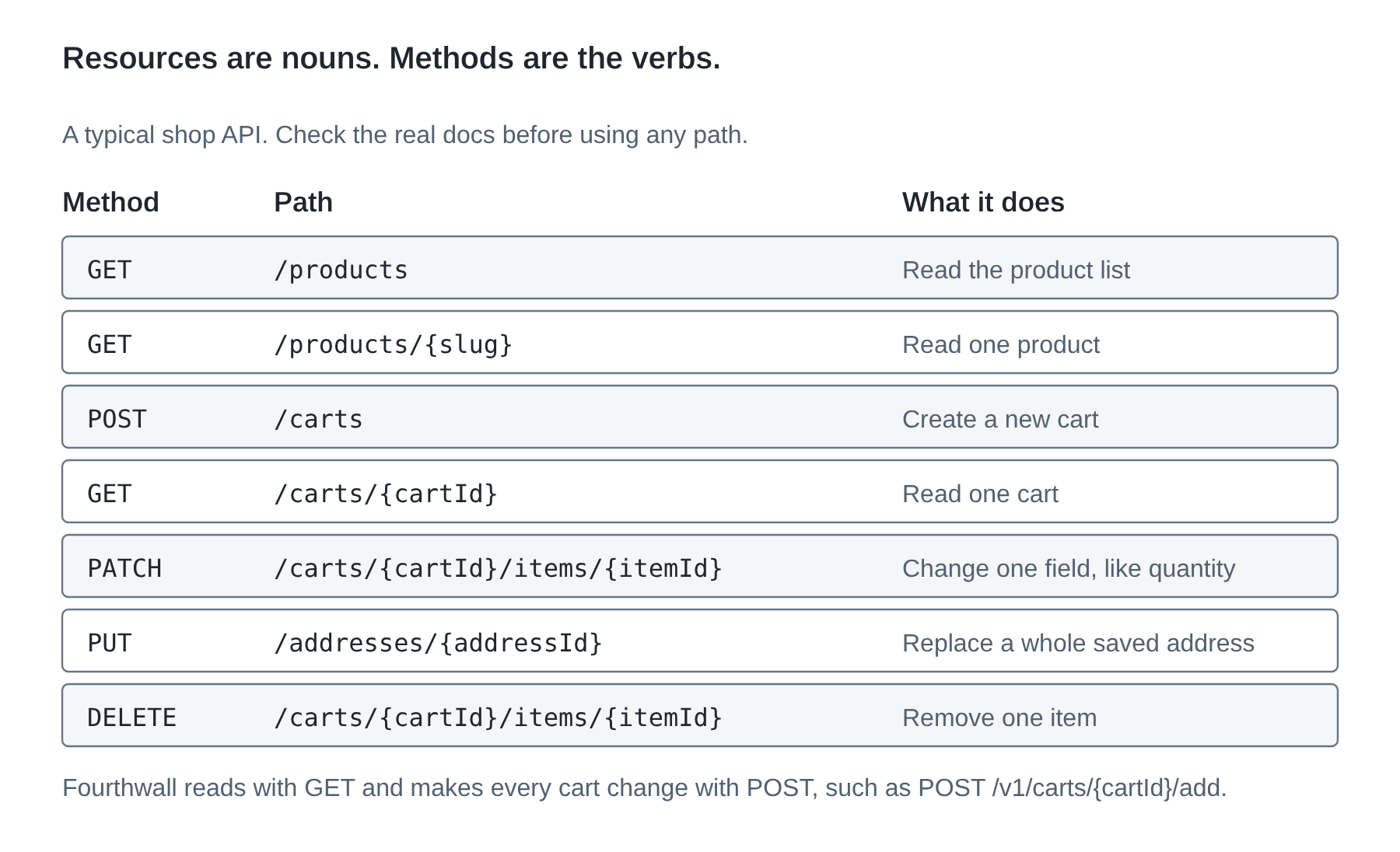
Status codes
Every response starts with a three-digit status code. The first digit tells you the group:
2xx
It worked.
200 OK, 201 Created, 204 No Content
4xx
Something is wrong with the request. Check what you sent.
400 Bad Request, 401 Unauthorized, 403 Forbidden, 404 Not Found, 409 Conflict, 429 Too Many Requests
5xx
The server had a problem. Your request might be fine.
500 Internal Server Error, 503 Service Unavailable
A quick rule: 4xx means look at your code, 5xx means look at the server (or wait and retry).
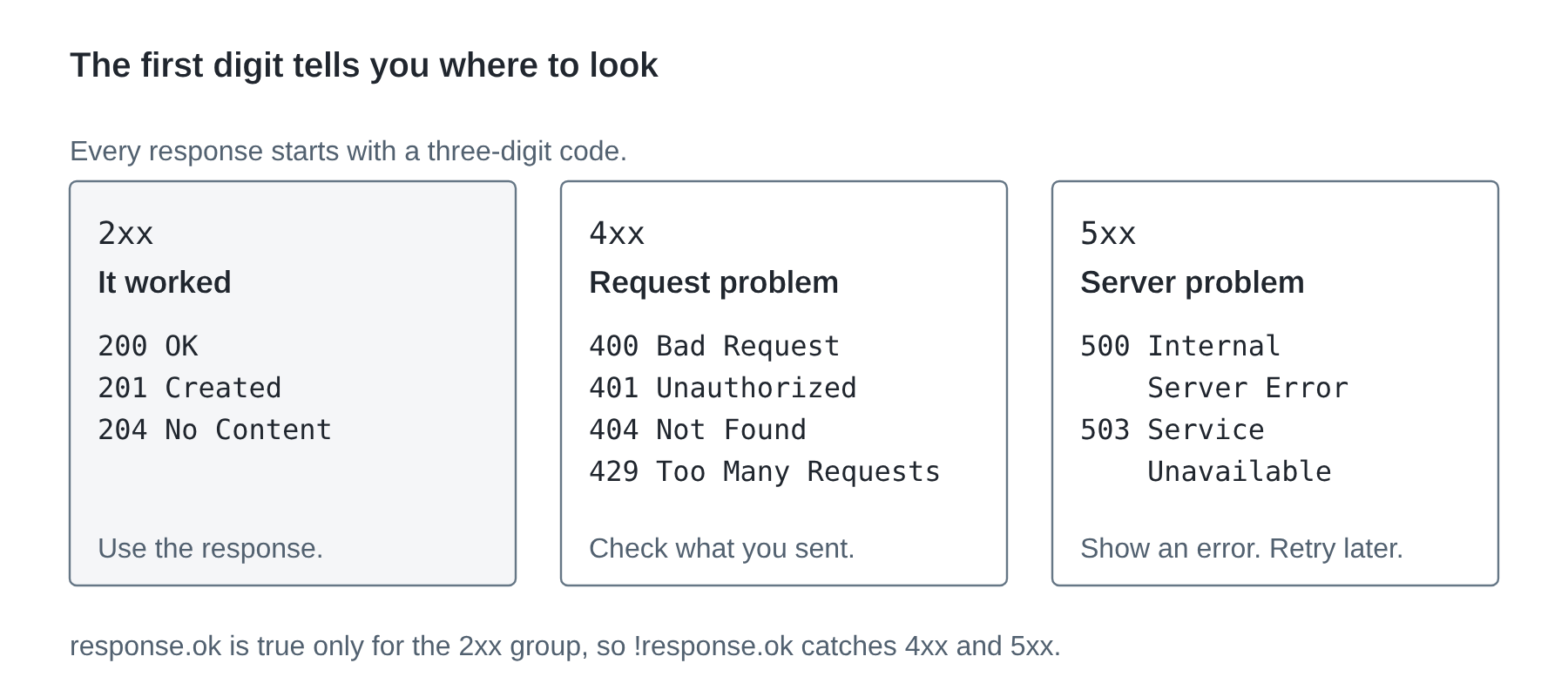
Request and response bodies
The body is the data a message carries. A GET request usually has no body, because the URL already says what we want. The response body holds the data we asked for.
A POST, PUT, or PATCH request usually has a body describing what to create or change. Most REST APIs send bodies as JSON in both directions.
Reading JSON
Open public/interests.json. The start should look familiar:
[
  {
    "id": "games",
    "title": "Video games",
    "description": "I like learning how games are designed."
  }
]
JSON, short for JavaScript Object Notation, is a text format for sending data. This example describesis an array containing an object. Unlike our .js file, it has no export, variable declaration, or function. Property names and strings use double quotes. JSON does not allow comments or an extra comma after the last item.
Open /interests.json at the same local address as your app. For example, if your page is at http://localhost:5173, open http://localhost:5173/interests.json. The browser shouldjust showmade a GET request for that resource and is showing you the data.response body. The public folder name is not part of thatthe URL.
The text arriving over HTTP still needshas to be readturned asinto JavaScript data before React can use it. That is what response.json() will do.
Headers and statelessness
Headers are named pieces of information about a message, separate from the body. A few common ones:
Content-Type: application/json
The body is JSON. Sent on responses, and on requests that have a JSON body.
Accept: application/json
The client would like JSON back.
Authorization
Proof of who is asking, such as a token. Not every API uses this header. Some put the token in the URL instead.
REST APIs are stateless. The server doesn't remember your earlier requests. Each request has to include everything needed to answer it: the method, the URL, any token, and any body. That's why a cart API asks for the cart ID in every cart request. The server isn't keeping track of "your" cart between messages. You tell it which one, every time.
Stateless here is about the server. It's different from React state, which is the page remembering values between renders.
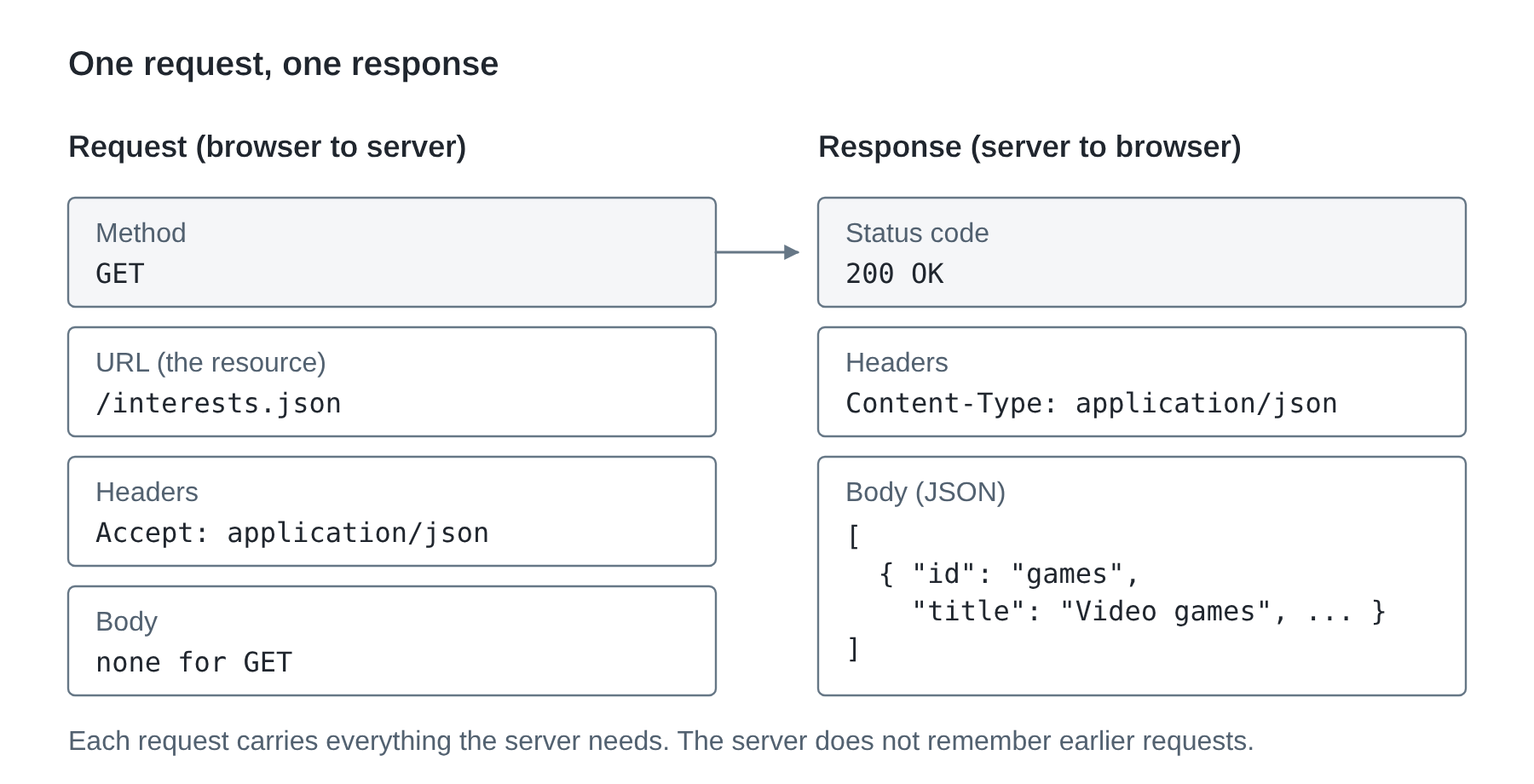
Making a GET request from React
Now we'll use these ideas. Our page will send GET /interests.json, read the JSON body, and check the status code.
State for a request
Look near the start of App. The reference declares three state values:
const [interests, setInterests] = useState([]);
const [status, setStatus] = useState("idle");
const [error, setError] = useState("");
interests starts as an empty array. status starts as "idle", meaning we have not requested the list yet. error starts as an empty string and will hold a message if loading fails.
We chose four status words for the page:
| Page status | What someone should see |
|---|---|
idle |
A button and instructions to load the list. |
loading |
A loading message while the request is unfinished. |
success |
Cards, or an explanation that the returned list is empty. |
error |
An error message and a way to try again. |
These strings are our React state. They are different from the numeric HTTP status code sent by the server.
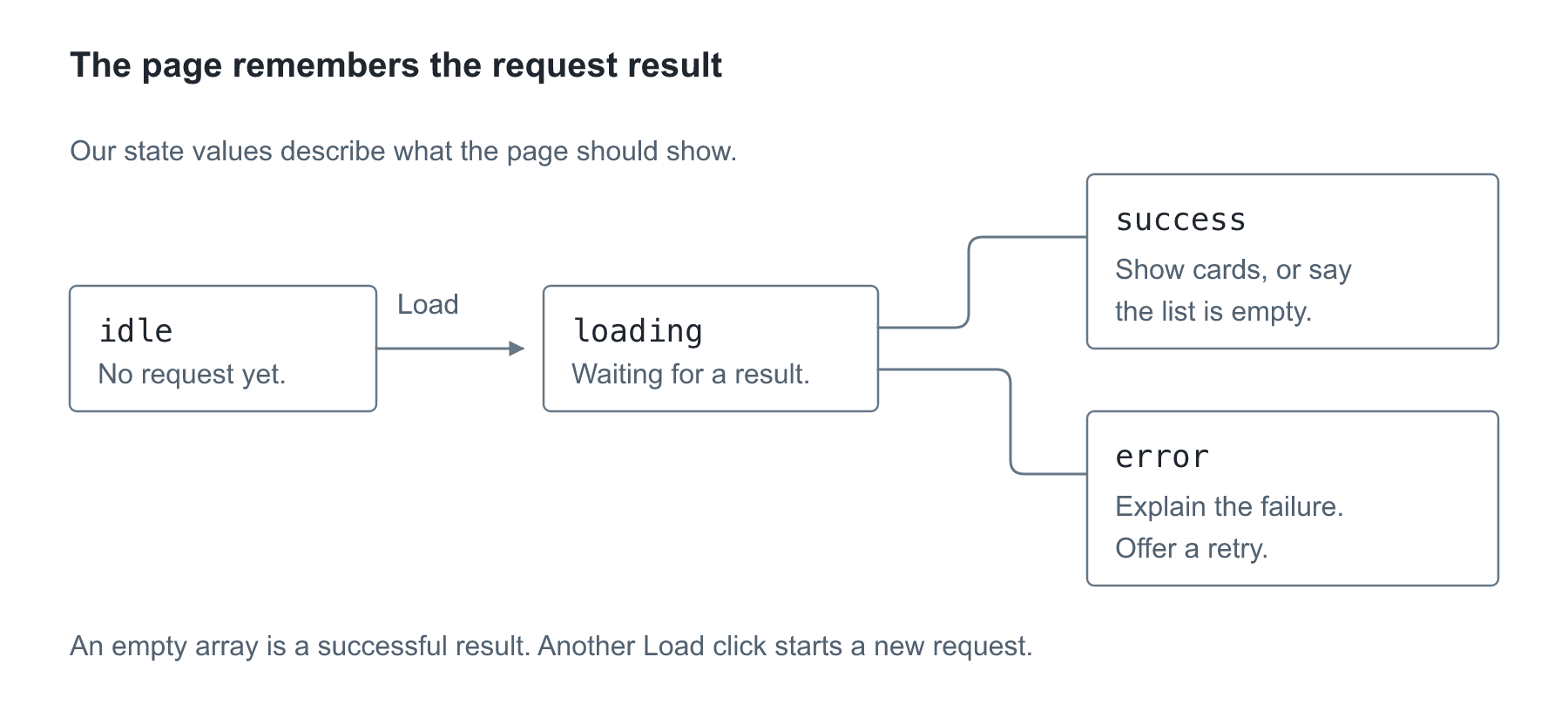
Follow the two possible results from loading. A valid empty array belongs to success: the request worked, but there are no cards to show. An error needs a different message because the page could not obtain a usable list.
Waiting for a response
fetch() starts an HTTP request. It returns a Promise: a value representing work that will finish later. The request may succeed or fail while the browser keeps responding to other actions.
An async function lets us use await inside it. await pauses the rest of that function until the operation settles; it does not freeze the entire browser.
These are the two lines that receive and read our response:
const response = await fetch("/interests.json");
const data = await response.json();
fetch usessends a GET byrequest default.unless we tell it otherwise. That's the method we want for reading a resource. The first result is a Response object containing the HTTP status, headers, and access to the body. The second line reads the body as JSON and produces the array. These are two separate steps: receiving a response does not mean we have already parsed its data.
We also need to check whether the responsestatus was successful.code. fetch canstill returngives us a Response for an HTTP error such asa 404 or 500. It only fails outright when no response arrives at all. response.ok is true for statusthe codes2xx fromcodes, 200 through 299.299, so !response.ok catches the 4xx and 5xx groups. An offline request may fail before any Response arrives.
Handling failures
Before adding the complete function, read the new JavaScript used in it:
if (condition) { ... }runs the instructions in its braces only when the condition is true.!means “not.”!response.okchecks for a response that was not successful.throw new Error("message")creates an error and stops the current path through the code.trysurrounds work that can fail.catch (failure)runs if an error is thrown there and gives that error the namefailure.failure.messagereads the error's message.+joins strings in these messages.return;ends the function immediately without returning a value.
The error handling is part of making the button useful: someone needs to know when the request did not work and be able to try again.
The provided isInterest function checks each object's fields before we display it. Array.isArray(data) checks the outer list, and .every(isInterest) checks that all its items pass the function. || means “or,” so we reject the response if either check fails.
Replace the empty loadInterests function with:
async function loadInterests() {
  if (status === "loading") {
    return;
  }

  setStatus("loading");
  setError("");

  try {
    const response = await fetch("/interests.json");

    if (!response.ok) {
      throw new Error("The request failed with status " + response.status + ".");
    }

    const data = await response.json();

    if (!Array.isArray(data) || !data.every(isInterest)) {
      throw new Error("The response does not contain the interest fields we need.");
    }

    setInterests(data);
    setStatus("success");
  } catch (failure) {
    setError("Could not load interests. " + failure.message);
    setStatus("error");
  }
}
At the beginning, we stop if a request is already loading. Otherwise, we show loading and clear an earlier error. After receiving a successful response with valid data, we save the list and show success. A request error, unreadable JSON, or a failed field check takes us to catch.
Save and click Load interests. The cards should appear.
How the response becomes a page update
Receiving JSON does not put cards in the DOM by itself. fetch gets a response, and response.json() reads its body into JavaScript data. After the checks pass, setInterests(data) and setStatus("success") ask React to use that data and status in another render.
React calls App again. The JSX now uses the returned interests to describe cards and the success status to choose its message. React commits the needed DOM changes, then the browser can paint them. Earlier, setStatus("loading") requested the loading version of the same page. The request happens while that document stays open; we are not asking the server for a whole new HTML page.
This is the same state-to-page process as Week 5's search. The new value comes from a response instead of a text field. If we only saved the response in a local variable and never called a setter, React would have no request to update this interface.
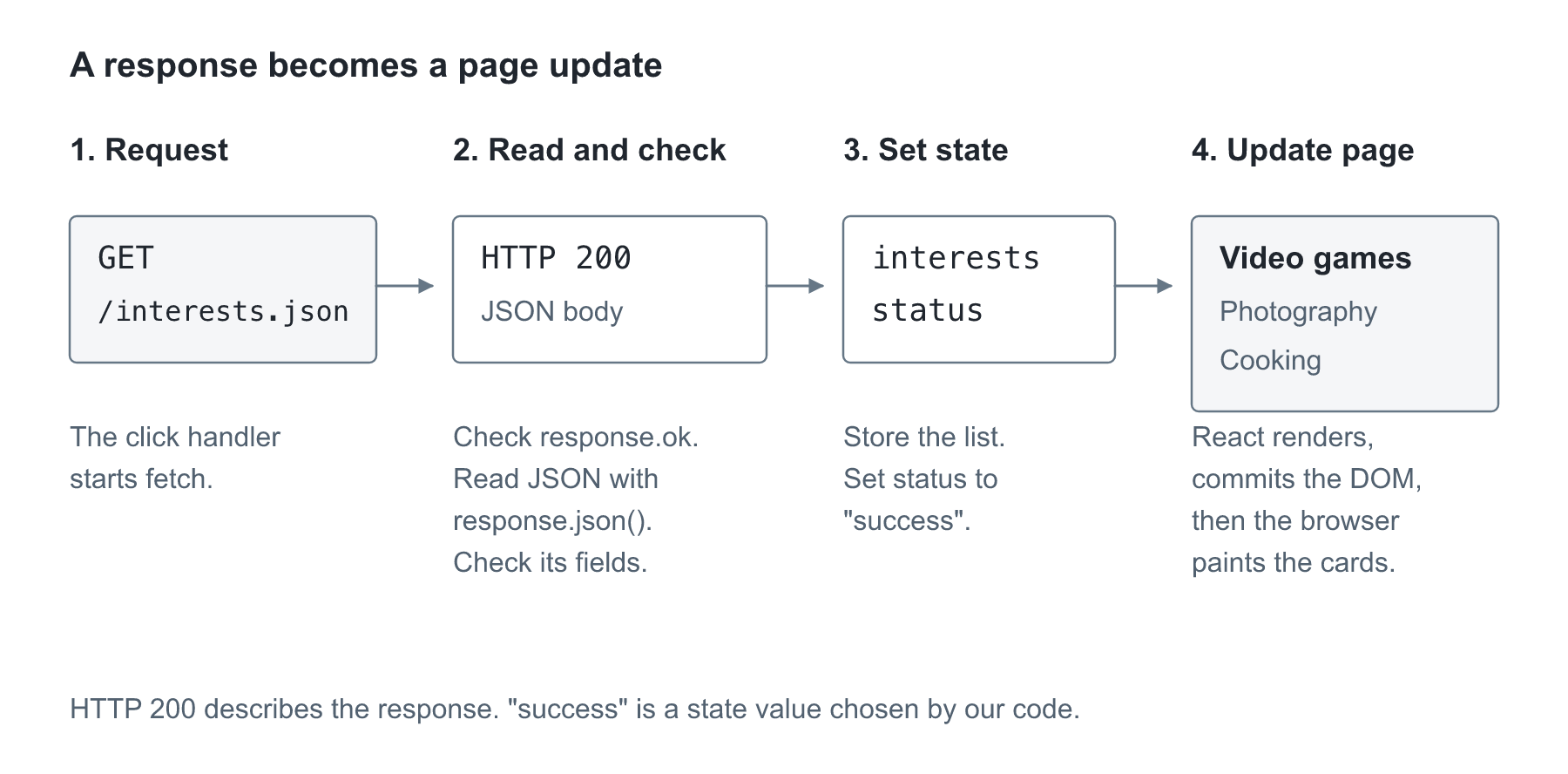
Read the picture alongside loadInterests. The response supplies data; the state setters ask React to show it. Which step would fail if the server returned an object instead of the array our page expects?
Checking the response's shape
Look at the supplied check near the top of App.jsx:
function isInterest(value) {
  return (
    value !== null &&
    typeof value === "object" &&
    typeof value.id === "string" &&
    typeof value.title === "string" &&
    typeof value.description === "string"
  );
}
null represents an explicitly empty value. !== means “is not equal to.” typeof returns a word describing a value's type. This function requires a non-null object with three string fields.
&& requires each check to pass. JavaScript stops checking after the first false result, so it will not try to read .id from null. We check for null separately because JavaScript's typeof null is "object".
This is a small check for our known class file. It helps us report an unexpected response instead of crashing while drawing cards. A real product response will need checks for its own fields; an isInterest function cannot validate a product or a cart.
Showing what is happening
<button type="button" onClick={loadInterests} disabled={status === "loading"}>
  Load interests
</button>
As with onChange last week, we pass the function without calling it. disabled receives a Boolean value. When the comparison is true, the browser prevents someone from pressing the button again.
The page uses conditions to choose messages. For example:
{status === "success" && interests.length === 0 && (
  <p>No interests were returned.</p>
)}
=== compares values and && requires both conditions to be true. This paragraph appears when loading succeeded and the returned array has zero items. An empty list is a successful response with nothing to display; it is not the same as a failed request.
In the full file, interests.length > 0 checks for more than zero items. role="status" lets a screen reader announce routine changes, and role="alert" announces an error. The error paragraph also tells you how to retry.
Inspecting the request
Open the browser's developer tools with Inspect, then open Network. Keep the page open and click Load interests again. Find the request named interests.json.
InspectMatch thesewhat parts:you see to the REST terms from earlier:
- In Headers, find the request URL, the method, and the status code. The URL
should end in/interests.jsonandis the resource. The method should beGETand the status should be200.
Content-Type. It should say the body is JSON.
In Response or Preview, find the response body: the returned array and its objects. This is the data our function passed to setInterests.
Compare a returned title with If loading happens too quickly to notice, use the Network panel's throttling control to slow the connection, then click again. Throttling simulates a slower connection. You should see the loading message and disabled button while the request is pending. Turn throttling off afterward.
No request appears until the button is clicked. The event handler starts the request;request. thereThere is no automatic load onwhen the page openingopens in this exercise.
Try an empty list and a failure
First, save a copy of the working JSON. Then replace its contents with:
[]
Save and click the button. You should get No interests were returned. Restore the data.
Next, change "title" to "heading" in one object. The JSON is still readable, but it no longer matches the fields our page needs. Load it again. Find the error message and fix the property name. Retry without refreshing the page.
For a network failure, choose Offline in the Network panel and click the button. Restore the normal connection setting before trying again. Do not leave the browser offline when you move on.
The failures tell us different things: an empty array is valid data, a renamed property is the wrong data shape, and an offline browser cannot complete the request.
Comparing
Now thisask for a resource that doesn't exist. In loadInterests, change the URL to "/missing.json" and click the button. Look at the row in Network. Vite answers some missing paths with its own HTML page and a 200, so you may get a JSON parsing error instead of a clean 404. Either way, the page shows an error. This is also why we check both the status code and the body's shape. Put the URL back afterward.
Reading API docs: Fourthwall
Our merch APIsite
Fourthwallwill canuse provide the merch catalog through itsFourthwall's Storefront API. OneIts documenteddocs requestfollow asksthe REST habits above, so let's read them the way you'd read any new API. You don't need a token or a shop for this part. We're only reading.
Here are the publicendpoints the project will use, taken from Fourthwall's API reference:
GET /v1/collections/all/products
Read the products in the all GET /v1/products/{slug}
Read one product by its slug
POST /v1/carts
Create a new cart
GET /v1/carts/{cartId}
Read one cart
POST /v1/carts/{cartId}/add
Add items to a cart
POST /v1/carts/{cartId}/change
Change item quantities
POST /v1/carts/{cartId}/remove
Remove items
These come from Fourthwall's Storefront API schema, checked November 2, 2026. Each one has its own reference page, for example Get Product, Create Cart, Get Cart, and Add to Cart.
{slug} and {cartId} are placeholders. You replace them with a real value. All of these paths start from https://storefront-api.fourthwall.com.
Notice the methods. Reading uses GET, and every cart change uses POST with an action word at the end of the path. A different API might use PATCH to change a quantity or DELETE to remove an item. Fourthwall chose POST for all three. This is why we read the docs instead of guessing from the general rules.
A full product-list request looks like this:
GET https://storefront-api.fourthwall.com/v1/collections/all/products?storefront_token=YOUR_TOKEN¤cy=USD&page=0&size=50
This line is a request to read, not a command to run. YOUR_TOKEN is a placeholder for the shop's Storefront token. TheBecause partthe afterAPI is stateless, the token goes with every request. Fourthwall puts it in a ?storefront_token contains query parameters:parameter namedrather valuesthan separated byan &AuthorizationTheycurrency identifypicks the storefront, requestedprice currency, and page and size pick which slice of results.products comes back.
Fourthwall's product-listThe response body, described in Fetching Products, is an object containing results and paging, not a bare array. results holds the products,products. paging describes the page you got: pageNumber, pageSize, totalPages, elementsTotal, and paging.hasNextPage
This shortened example uses invented values and omitsleaves otherout most product fields:
{
  "results": [
    {
      "type": "PRODUCT",
      "id": "example-product",
      "name": "Blueprint shirt",
      "slug": "blueprint-shirt",
      "variants": []
    }
  ],
  "paging": {
    "hasNextPage": false
  }
}
After response.json(), the product array is at data.results, and the first product's name is at data.results[0].name. Our interests use title;. Fourthwall products use name. ProductEach variantsvariant carrycarries more information, including an ID and price,a unitPrice, which we'll useneed nextfor week.the cart.
ChangingThe docs also list the error responses. For GET /v1/products/{slug}, a slug that doesn't exist returns 404 with a JSON body whose code is OFFER_SLUG_NOT_FOUND_ERROR. Good APIs tell you what went wrong in the body, not just the status code.
So changing only the URL in our exercise would not be enough. We wouldWe'd need to read the actualreal response shape, validatecheck the product fields we use, handle additionalmore pages, and pass product values to product cards. For the initial class project, we'll use ordinary products; theThe API can also return bundlesbundles, withwhich have different fields.fields, so we'll check type too.
Open Fourthwall's FetchingGet ProductsProduct page (linked under Resources). For one endpoint, find these five things. You can do this with any API's docs:
resultspagingvariantsWhen another address is blocked
Our JSON file comes from the same address as the page, so the browser lets us read it. A different site, like Fourthwall, is a different origin. The browser only lets our page read its response if that server allows it. This rule is called CORS. Fourthwall allows browser calls to its Storefront API, but not every API does.
If a future request is blocked, read the Console and Network details, check the address, then check the API's instructions for browser access. Adding mode: "no-cors" will not fix it. It hides the response body from our code.
When something goes wrong
| What you see | What to check |
|---|---|
| No request in Network | Confirm the button uses onClick={loadInterests} and the function contains fetch. |
| JSON parsing error or an HTML response | Open the exact request URL. Confirm the file is public/interests.json, not src/interests.json or public/public/interests.json. |
| Wrong-field error | Check id, title, and description and confirm that the outer value is an array. |
| The page stays in loading | Check the Console, keep both success and catch status updates, and make sure you restored normal network settings. |
HTTP 401 or 403 on a future API call |
Read the response and check the service's access instructions and configured token. |
HTTP 404 |
Check the endpoint and resource ID. A missing local path may instead return Vite's HTML page, which causes a JSON parsing error. |
HTTP 429 |
Too many requests were made. Follow the API's retry guidance instead of repeatedly clicking. |
HTTP 500 |
The server reported an error. Keep the error message and retry path useful; changing the page's CSS will not fix the server. |
The meanings of other HTTP codes are listed on the MDN status codes page under Resources.
What's next
Before next week, restore valid JSONJSON, put the URL back to /interests.json, and turn off any Network throttling or Offline setting. Add one new interest to the JSON, load it, and check that its card shows. Commit with a message such as Load interests and push the branch. If GitHub asks you to sign in, use the GitHub CLI steps on the Setup page.andwith handlea failedGET requestsrequest
Next week, we'll use state to choose a product variant and update a small practice cart. Later, those cart changes become the POST requests in the Fourthwall table above.
Resources
Everything needed for today's code and explanations is above. These are extra examples or references to return to after the exercise.
- MDN: Overview of HTTP
- MDN: Working with JSON
- MDN: Using Fetch
- MDN: async functions
- MDN: try...catch
- MDN: Response.ok
- MDN: typeof
- MDN: CORS
- MDN: HTTP request methods
Complete practice files
Copy these files into the paths shown below. They are the same files used by the lesson. Keep the filenames and imports together. Keep last week's InterestCard.jsx (or copy the version below if you need it).
src/InterestCard.jsx
export default function InterestCard(props) {
  return (
    <article className="interest-card">
      <h3>{props.title}</h3>
      <p>{props.description}</p>
    </article>
  );
}
src/App.jsx
import { useState } from "react";
import InterestCard from "./InterestCard.jsx";
import "./App.css";

function isInterest(value) {
  return (
    value !== null &&
    typeof value === "object" &&
    typeof value.id === "string" &&
    typeof value.title === "string" &&
    typeof value.description === "string"
  );
}

function renderInterest(interest) {
  return (
    <InterestCard
      key={interest.id}
      title={interest.title}
      description={interest.description}
    />
  );
}

export default function App() {
  const [interests, setInterests] = useState([]);
  const [status, setStatus] = useState("idle");
  const [error, setError] = useState("");

  async function loadInterests() {
    if (status === "loading") {
      return;
    }

    setStatus("loading");
    setError("");

    try {
      const response = await fetch("/interests.json");

      if (!response.ok) {
        throw new Error("The request failed with status " + response.status + ".");
      }

      const data = await response.json();

      if (!Array.isArray(data) || !data.every(isInterest)) {
        throw new Error("The response does not contain the interest fields we need.");
      }

      setInterests(data);
      setStatus("success");
    } catch (failure) {
      setError("Could not load interests. " + failure.message);
      setStatus("error");
    }
  }

  return (
    <main>
      <h1>Load my interests</h1>
      <p>
        This practice page requests a JSON file from the same server as the page.
      </p>
      <button type="button" onClick={loadInterests} disabled={status === "loading"}>
        Load interests
      </button>

      <div role="status">
        {status === "idle" && <p>Click the button to request the list.</p>}
        {status === "loading" && <p>Loading interests…</p>}
        {status === "success" && interests.length > 0 && (
          <p>Interests loaded: {interests.length}</p>
        )}
        {status === "success" && interests.length === 0 && (
          <p>No interests were returned.</p>
        )}
      </div>

      {status === "error" && (
        <p role="alert">{error} Check the Network tab, then click Load interests to try again.</p>
      )}
      {status === "success" && (
        <div className="interest-list">{interests.map(renderInterest)}</div>
      )}
    </main>
  );
}
src/App.css
.interest-card h3 {
  font-size: 1.15rem;
  margin: 0;
}

button:disabled {
  background: #475569;
  cursor: wait;
}

[role="alert"] {
  color: #991b1b;
  border-left: 4px solid #b91c1c;
  padding: 12px;
  background: #fef2f2;
}
public/interests.json
[
  {
    "id": "games",
    "title": "Video games",
    "description": "I like learning how games are designed."
  },
  {
    "id": "photos",
    "title": "Photography",
    "description": "I like taking pictures around Hoboken."
  },
  {
    "id": "cooking",
    "title": "Cooking",
    "description": "I like trying a new recipe each week."
  }
]