
Week 7
Last week, our page asked a server for a list and showed it. This week we're building the thing every store has: a cart. And we're building it together, one piece at a time. You'll start with a page that just shows a shirt. By the end of the meeting you'll be able to pick a size, add it to a cart, add it again and watch the quantity go up, and remove it. Every one of those is a few lines you typed yourself.
The products and prices are made up, and the cart only lives in React state (so refreshing the page empties it). Adding something doesn't reserve a shirt, place an order, or charge anyone. We'll get to the real store cart later.
Getting started
Save and commit your Week 6 work. Open a terminal at the top of practice-page and make a new branch from it:
git status
git switch -c cart-practice
If Git says that branch already exists, use git switch cart-practice instead.
Now we need a starting point. In react-page/src, replace App.jsx and App.css with the starter versions below, and make a new file called products.js. Keep main.jsx and styles.css the way they are. (Your Week 6 work is still saved in Git, so nothing is lost.) The same three files are also in week-07-starter.zip if you'd rather download than copy.
src/products.js
// Made-up practice products. Prices are in cents, so 2400 means $24.00.
export const products = [
  {
    id: "demo-shirt",
    name: "Practice T-shirt",
    variants: [
      { id: "demo-shirt-small", label: "Small", priceMinor: 2400, available: true },
      { id: "demo-shirt-medium", label: "Medium", priceMinor: 2400, available: true },
      { id: "demo-shirt-large", label: "Large", priceMinor: 2400, available: false },
    ],
  },
];
src/App.css
section + section {
  margin-top: 24px;
}

label {
  display: block;
  font-weight: 600;
  margin: 16px 0 8px;
}

select {
  display: block;
  width: 100%;
  font: inherit;
  color: inherit;
  background: white;
  padding: 12px;
  border: 1px solid #64748b;
  border-radius: 8px;
  margin-bottom: 16px;
}

select:focus-visible {
  outline: 3px solid #1d4ed8;
  outline-offset: 3px;
}

.remove-button {
  color: #1d4ed8;
  background: #eff6ff;
  border: 1px solid #1d4ed8;
}

.cart-subtotal {
  font-size: 1.2rem;
  font-weight: 700;
}

button:disabled {
  background: #475569;
  cursor: not-allowed;
}
src/App.jsx (starter)
import "./App.css";

const product = products[0];

function formatPrice(priceMinor) {
  return (priceMinor / 100).toLocaleString("en-US", {
    style: "currency",
    currency: "USD",
  });
}

export default function App() {
  return (
    <main>
      <h1>Practice cart</h1>
      <p>Made-up products. This cart lives in React state, so refreshing the page empties it.</p>

      <section className="interest-card" aria-labelledby="product-heading">
        <h2 id="product-heading">{product.name}</h2>
        <p>{formatPrice(product.variants[0].priceMinor)}</p>
        {/* Step 1: the size dropdown goes here */}
      </section>

      <section aria-labelledby="cart-heading">
        <h2 id="cart-heading">Your cart</h2>
        <p>Your cart is empty.</p>
      </section>
    </main>
  );
}
Start the server from react-page:
cd react-page
npm run dev
Open the address the terminal prints. You should see Practice cart, a Practice T-shirt for $24.00, and "Your cart is empty." That's it for now. There's no dropdown and no button yet, because that's what we're about to write. If npm isn't found, check the Setup page.
Leave the dev server running the whole time. Every time you save, the page updates by itself.
What a cart has to know
A product list and a cart sound like the same thing, but they do pretty different jobs. The product list describes what you can buy. The cart describes what this person picked and how many.
Open products.js. There's one product, the Practice T-shirt, and it has three variants. A variant is one specific option of a product that you can actually buy, like the Small T-shirt. All three sizes belong to demo-shirt, but each one has its own variant ID.
That's the big idea for today: the cart needs to remember the variant, not just the product. If we only saved demo-shirt, a Small and a Medium would look like the same thing, and someone ordering one of each would get two of whatever we guessed.
available is a Boolean (true or false). Large is false, so it'll show up as sold out.
priceMinor is the price in cents, so 2400 means $24.00. We store whole cents because decimals in JavaScript can get weird (try 0.1 + 0.2 in the Console sometime). formatPrice in the starter turns cents into dollars, and it's the only place we divide by 100. These field names are our practice format, not Fourthwall's. The real API has its own fields, and you always go by its docs.
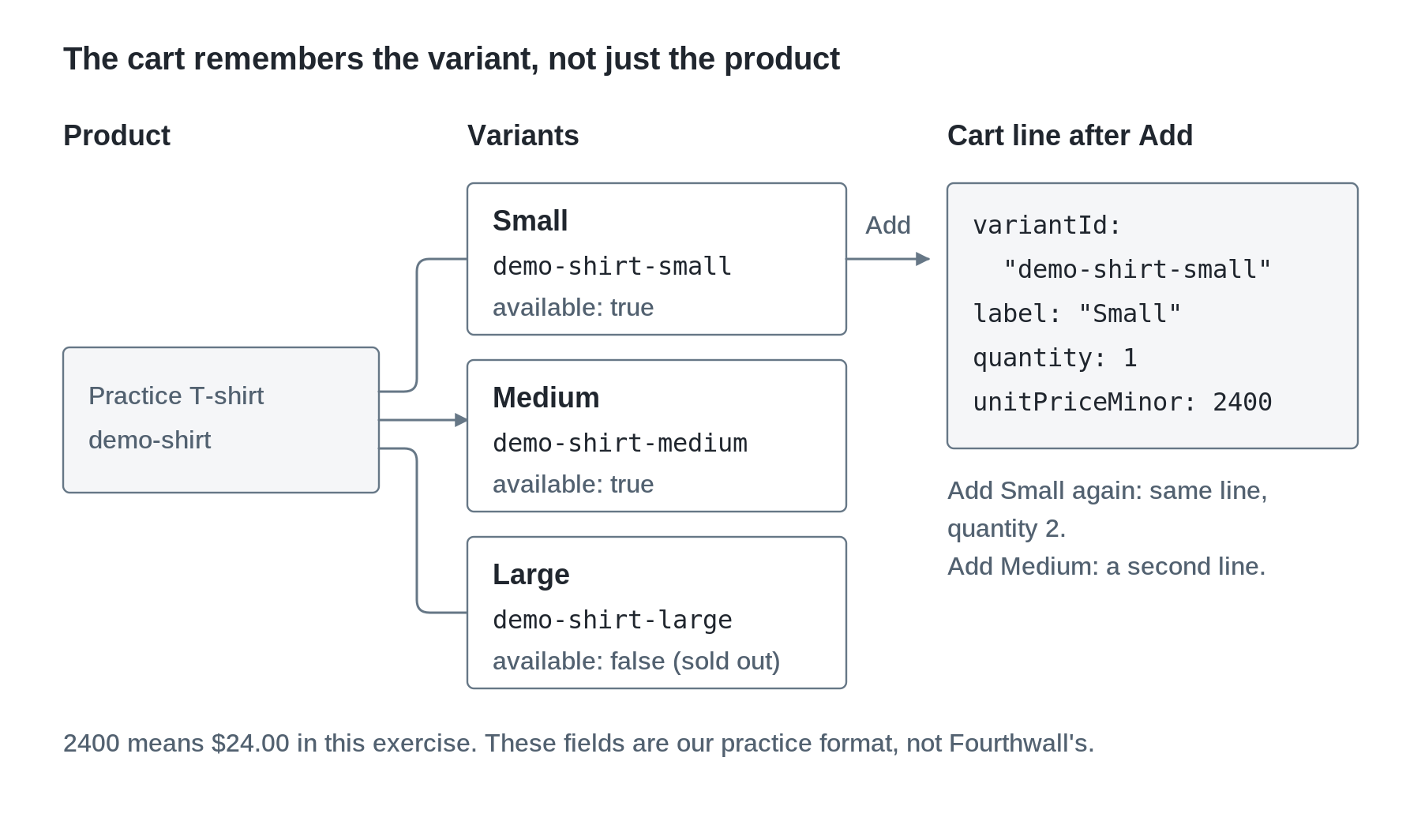
Here's what we're building toward. The cart line remembers the variant ID. Adding Small again doesn't make a second line, it just bumps the quantity. Adding Medium does make a second line.
Step 1: Pick a size
First, the page needs to remember which size is picked. That's state, same as the search box in Week 5.
At the top of App.jsx, add the useState import above the products import, so the imports look like this:
import { useState } from "react";
import { products } from "./products.js";
Next, inside App, right under the export default function App() { line, add the state and a function to update it:
const [selectedVariantId, setSelectedVariantId] = useState(product.variants[0].id);

  function handleVariantChange(event) {
    setSelectedVariantId(event.target.value);
  }
selectedVariantId starts as the first variant's ID, so the page starts on Small.
Now find these two lines in the product section:
<p>{formatPrice(product.variants[0].priceMinor)}</p>
        {/* Step 1: the size dropdown goes here */}
Delete both of them and put this in their place:
<label htmlFor="variant">Size</label>
        <select id="variant" value={selectedVariantId} onChange={handleVariantChange}>
          {product.variants.map((variant) => (
            <option key={variant.id} value={variant.id} disabled={!variant.available}>
              {variant.label}, {formatPrice(variant.priceMinor)}
              {!variant.available && " (sold out)"}
            </option>
          ))}
        </select>
        <p>Selected: {selectedVariantId}</p>
Save. You should see a Size dropdown with Small, Medium, and Large, and Large should be greyed out with "(sold out)". Change it to Medium, and the "Selected:" line should change to demo-shirt-medium.
So what did we just write? This is the same controlled input from Week 5, just a dropdown this time. value comes from state, and handleVariantChange puts event.target.value back into state. We .map() over the variants to make one <option> each, and each one needs a key, like our interest cards did.
Each option's value is the variant ID, and the text between the tags is the label people read. That way we could rename "Small" to "S" and the cart wouldn't care, because the ID stays the same.
! flips a Boolean, so a sold-out variant gives disabled={true}. Same idea with && from Week 5: the "(sold out)" text only shows up when the variant isn't available.
The "Selected:" line is just there so we can see the state. We'll delete it in Step 3.
Step 2: Add to cart
Now we need the cart itself. The cart is a list, so it starts as an empty array. Right under the const [selectedVariantId, setSelectedVariantId] = useState(...) line, add:
const [cart, setCart] = useState([]);Now the function that runs when someone clicks Add. Put this right after the closing } of handleVariantChange:
function handleAdd(variantId) {
    const variant = product.variants.find((option) => option.id === variantId);

    setCart([
      ...cart,
      {
        variantId: variant.id,
        name: product.name,
        label: variant.label,
        quantity: 1,
        unitPriceMinor: variant.priceMinor,
      },
    ]);
}<button type="button" onClick={() => handleAdd(selectedVariantId)}>
Add to cart
</button>Last piece: we need to actually show the cart. In the cart section, find:
<p>Your cart is empty.</p>Replace it with:
{cart.length === 0 && <p>Your cart is empty.</p>}
<div className="interest-list">
{cart.map((line) => (
<article className="interest-card" key={line.variantId}>
<h3>{line.name}, {line.label}</h3>
<p>{formatPrice(line.unitPriceMinor)} each</p>
<p>Quantity: {line.quantity}</p>
</article>
))}
</div>Save. Click Add to cart once. You should see one Practice T-shirt, Small, quantity 1.
Now let's look at what we just typed, top to bottom.
.find() goes through an array and gives back the first item that passes your test. Here, it's the variant whose ID matches the one we picked.
Then we build the next cart. ...cart is spread syntax. It copies everything from the old array into a new one, and our new line goes at the end. We make a new array instead of calling cart.push(...), because push changes the array React is already holding. React compares the old and new state to decide whether to render again, so if you edit the old array in place, the page might not update.
The cart list is the same .map() as our interest cards. The empty message only shows up when there's nothing in the cart, and each line's key is its variantId.
Now click it again.
Wait, two lines?
You should see two Small lines, each with quantity 1. Open the browser's Console (right-click, Inspect, Console). React is complaining: "Encountered two children with the same key."
That's the bug we wanted to see. Our handleAdd always adds a new line, even when that size is already in the cart. React is mad because we told it variantId is what makes each line unique, and now two lines have the same one.
Refresh the page to empty the cart. Now let's fix it.
In handleAdd, find this line:
const variant = product.variants.find((option) => option.id === variantId);Right under it, add:
if (!variant || !variant.available) {
return;
}
const existingLine = cart.find((line) => line.variantId === variantId);
if (existingLine) {
setCart(
cart.map((line) => {
if (line.variantId === variantId) {
return { ...line, quantity: line.quantity + 1 };
}
return line;
})
);
return;
}Leave the setCart([...cart, { ... }]) that was already there, right below what you just pasted. That's still how a brand-new size gets added. Your whole handleAdd should now look like this (check your braces against it):
function handleAdd(variantId) {
const variant = product.variants.find((option) => option.id === variantId);
if (!variant || !variant.available) {
return;
}
const existingLine = cart.find((line) => line.variantId === variantId);
if (existingLine) {
setCart(
cart.map((line) => {
if (line.variantId === variantId) {
return { ...line, quantity: line.quantity + 1 };
}
return line;
})
);
return;
}
setCart([
...cart,
{
variantId: variant.id,
name: product.name,
label: variant.label,
quantity: 1,
unitPriceMinor: variant.priceMinor,
},
]);
}Read it top to bottom:
- If the variant doesn't exist or isn't available, stop.
returnends the function early, so nothing gets added. - Look for a cart line that already has this variant ID.
- If there is one, make a new cart where that line's quantity is 1 higher, and stop there.
- If there isn't, we fall through to the
setCart([...cart, ...])we already had, which adds a new line.
.map() visits every line and returns one result for each. For the line we're bumping, { ...line, quantity: line.quantity + 1 } makes a new object with all the old fields copied in, then replaces quantity. Every other line comes back the way it was. In Week 5, .map() turned data into cards. Here it turns data into new data. Same method, it just depends on what you return.
Don't write existingLine.quantity = existingLine.quantity + 1. That edits an object React is already holding, which is the same problem as push.
You might wonder why we check available when the dropdown already greys out Large. The disabled option helps the person using the page. The check in the function stops any other code from adding something it shouldn't. (A real store checks again on its server, since anyone can mess with what a browser sends.)
Save, then try it:
- Clear the Console (the circle-with-a-line icon at its top left) so the old warning is gone. Add Small twice. You should see one line with quantity 2, and no new warning.
- Pick Medium and add it. You should see a second, separate line for Medium.
That's the variant idea working. If Small and Medium ever end up on one line, something is matching on the product ID instead of the variant ID.
Step 3: Move the button into its own component
So far, props have carried text, like a card's title. Props can also carry a function. That's how a child tells its parent that something happened.
Above export default function App() { (outside App, not inside it), add:
function AddButton(props) {
function handleClick() {
props.onAdd(props.variantId);
}
return (
<button type="button" onClick={handleClick}>
Add to cart
</button>
);
}Now, back in App's JSX, find the debug line and the button from Step 2. That's everything from <p>Selected: down to the button's </button>:
<p>Selected: {selectedVariantId}</p>
<button type="button" onClick={() => handleAdd(selectedVariantId)}>
          Add to cart
</button>Delete all of that and replace it with:
<AddButton variantId={selectedVariantId} onAdd={handleAdd} />Save. The "Selected:" line is gone, but Add should work exactly like before. Small twice still gives quantity 2, and Medium still gets its own line.
Here's what happens when you click:
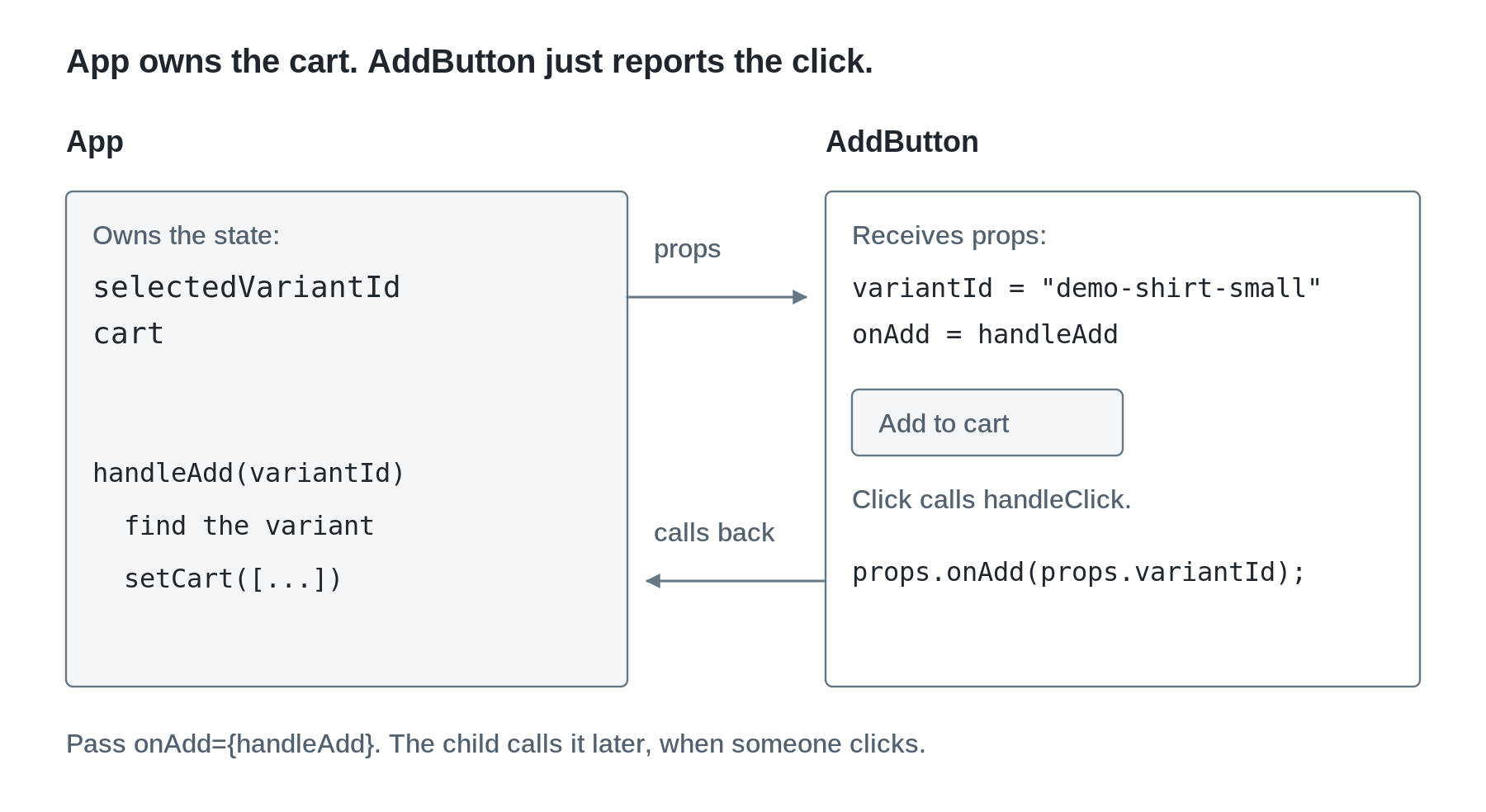
Why not just give AddButton its own cart? Because lots of parts of the page need the same cart. The product controls add to it, the cart list shows it, and later a checkout button reads it. If each one kept its own copy, they'd disagree. So the cart lives in the closest parent that all of them share (here that's App), and the children get what they need through props. React's docs call moving state up to that shared parent "lifting state up."
onAdd is a name we made up. React doesn't know it means anything. onClick on the real <button> is the built-in one that listens for the browser's click.
Keep it as onAdd={handleAdd}, with no parentheses. onAdd={handleAdd(selectedVariantId)} would call it right away while React is drawing the page.
Step 4: Remove an item
Each cart line needs a Remove button, and the button needs to tell us which line.
Inside App, right above the return ( that starts the page's JSX (the one with <main> under it, not the one in AddButton), add:
function handleRemove(variantId) {
    setCart(cart.filter((line) => line.variantId !== variantId));
  }
This is .filter() from Week 5. It makes a new array with only the items that pass the test. !== means "is not equal to." So read it as "keep every line whose variant ID isn't the one we're removing."
(line) => line.variantId !== variantId is an arrow function. line is the parameter, and whatever comes after the arrow is what it returns. It does the same job as the named matchesSearch function we passed to .filter() in Week 5. We just wrote it right inside the call because we only need it there.
<button
                type="button"
                className="remove-button"
                onClick={() => handleRemove(line.variantId)}
              >
                Remove
              </button>
Each line passes its own variantId, so we wrap the call in an arrow again. That arrow waits for the click.
Save. Add Small and Medium, then click Remove on Small. Medium should still be there. Remove Medium too, and you should see "Your cart is empty." again.
When the cart lives on a server
Our cart runs instantly in the browser. The merch site's cart will be different, because Fourthwall holds it. Remember these from last week?
Endpoint | What it does |
|---|---|
| Add items to a cart |
| Change item quantities |
| Remove items |
Their request bodies look pretty familiar. Each one sends a list of items, and each item has a variantId and a quantity. So today's idea (the cart cares about the variant, not the product) carries straight over.
What comes back is the whole cart. Each item has a variant (with its own id, name, and unitPrice) and a quantity. There's no subtotal field in the cart response, so any total you add up in the browser is only an estimate. The real total comes from checkout.
A few things change once the cart is on a server:
- The click sends a request. In the version we'll build, the page waits for the answer before changing the cart.
- The server can say no (out of stock, bad quantity), so you show the error and keep the last cart that actually worked.
- You update the page from the cart the server sends back, not from the number you hoped it would be.
- While a request is going, you disable the cart buttons so two changes don't race each other. (Same idea as disabling Load interests last week.)
And a cart still isn't an order, whether it's ours or Fourthwall's. Next week, we'll follow it from the cart into checkout and see what happens to payment and orders.
When something goes wrong
What you see | What to check |
|---|---|
The page goes blank and the Console says
| Add the import from Step 1 at the top of
, with the other imports (not inside
). |
Clicking does nothing and the Console says
or
| The function got pasted outside
(after its last
). Move it inside
, above
. |
A red error about an unexpected token or
| Usually a paste landed inside the wrong tag or a brace went missing. Compare that spot with the snippet, or grab the catch-up copy for the step you're on. |
The dropdown changes, but Add uses the wrong size | The
should read and set
, and
should get that same ID. |
Same size twice still makes two lines | The
check from Step 2 has to come before the
at the bottom of
, and it needs its
after the
part. Without that
, both
calls run and the second one wins. |
Small and Medium become one line | Check the
find in
. It has to compare
, not the product ID. |
The page goes blank with "Too many re-renders" in the Console | Something is calling a function while React draws the page. Pass the function (
), and wrap the others in an arrow, like
. |
You click Add and the cart stays empty, with no error | Check Remove's
. Without the arrow,
runs while the line is being drawn, so it removes itself instantly. |
Clicking does nothing to the cart | Make a new array or object and call
. If you edit the old one with
or
, React may not notice anything changed. |
The price is 100 times too big | The data is in cents. Divide by 100 only once, in
. |
The cart is empty after refreshing | That's expected. This cart only lives in React state. |
Resources
Everything needed for today's code and explanations is above. These are extra examples or references to return to after the exercise.
- React: Sharing State Between Components
- React: Responding to Events
- React: Updating Arrays in State
- React: Updating Objects in State
- React:
<select> - React: Rendering Lists (keys)
- MDN: Array.find
- MDN: Array.filter
- MDN: Array.map
- MDN: Spread syntax
- MDN: Arrow functions
- Fourthwall: Add to Cart
- Fourthwall: Change Cart Quantity
- Fourthwall: Remove from Cart